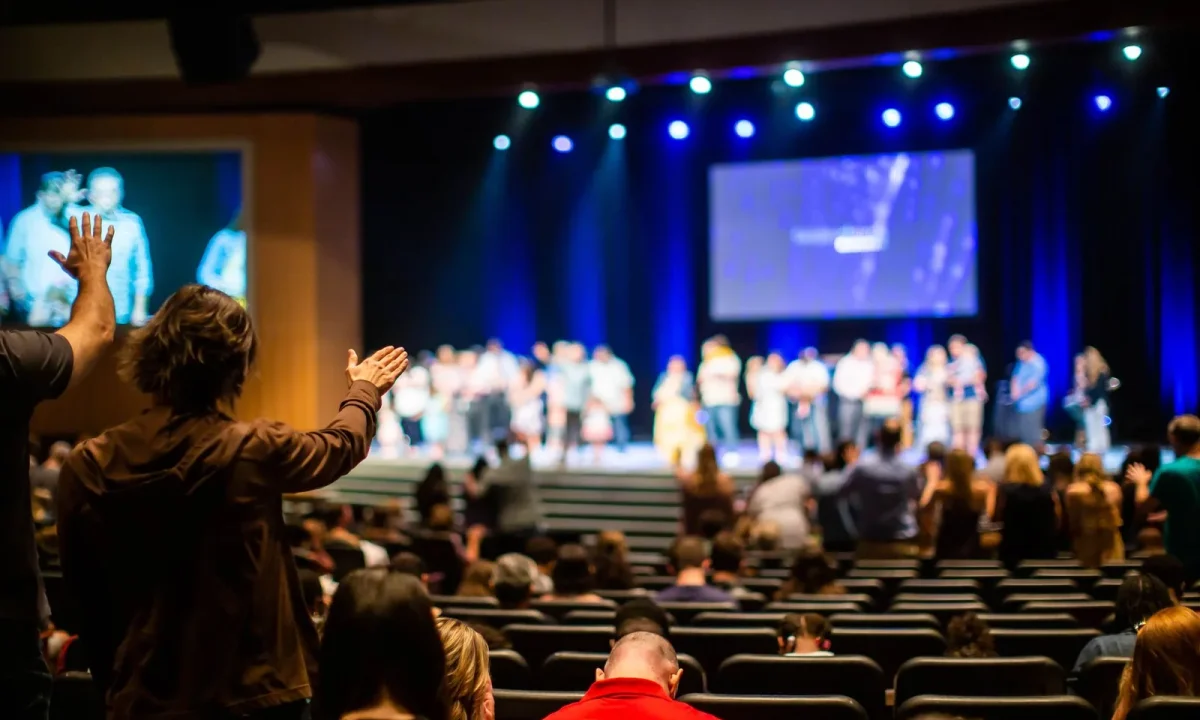
A teleprompter for live events can be the difference between a delivery that feels rehearsed and one that feels effortless. Unlike pre-recorded videos, live events leave no room for retakes, so the way you script, set up, and interact with your audience matters even more. This guide gathers practical, field-tested best practices for content creators, video producers, public speakers, and educators who want to deliver with confidence while keeping their audience engaged from the first line to the last.
What Makes a Live Event Different From a Recorded Take
In a studio, a bad line is simply a retake. On a live stage or stream, every hesitation, skipped beat, or misread line travels in real time to everyone watching. That single difference reshapes how you should prepare, because your prompter workflow has to support recovery as much as it supports delivery. Think of live streaming tips as overlapping with stage work: framing, pacing, and audience awareness all carry over, but timing and the ability to self-correct matter far more when there is no edit point waiting for you afterward.
Why real-time pressure changes how you read with a teleprompter for live events
Under live pressure, reading speed tends to creep upward and your voice flattens into a recitation. Recognizing that tendency in advance lets you counteract it with deliberate pauses and shorter script lines. Rehearse with a timer and record yourself so you can hear where your delivery starts to sound scripted rather than spoken.
The audience energy loop and your eye contact
Live audiences feed energy back to you, and you respond to it, creating a loop that recorded sessions rarely produce. When your eyes are locked on glass, you break that loop and the room cools quickly. The best setups place the prompter as close to your natural eye line as possible so you can glance, speak, and look back at the crowd without the audience noticing the shift.
Common live event risks and how to plan for them
Power loss, software freezes, a scrolling script that runs ahead of you, and venue lighting that washes out the display are the risks that appear most often. Each one is manageable if you plan for it: carry a printed script, a backup device, and a printed run of show for your operator. If you want a deeper breakdown of failure modes, see Avoiding Common Mistakes with Your Live Streaming Teleprompter.
Scripting for the Prompter Instead of the Page
Most scripts are written to be read silently, which produces sentences that are too long, clauses stacked on top of clauses, and punctuation that gives a speaker no place to breathe. A prompter script is written to be spoken aloud at a controlled pace. That means editing for rhythm first and information second, then validating the result on the actual device before you ever step on stage.
Write for the ear: short sentences and breathing marks
Break long ideas into sentences of fifteen words or fewer, and use slashes or double pipes to mark intentional breaths. Numbers, product names, and acronyms should be spelled the way you say them out loud, not the way they appear in print. Reading a line aloud once during the edit pass will catch almost every phrase your mouth will trip over.
Segment your script into clear beats and transitions
Organize the script into named beats — opening hook, three core points, proof, call to action, close — so you always know where you are in the arc. Bold or capitalized transition phrases act as visual signposts on the glass. When a beat ends, you should feel it, not have to think about it.
Build in natural pivot points for unscripted moments
Leave room for audience questions, chat comments, or a spontaneous aside by scripting explicit pivot lines such as “let me pause here and take a few questions.” These markers tell your operator to stop scrolling and give you permission to drop the script without losing your place. Prompter apps that support bookmarks or cue markers make these pivot points easy to jump between.
Version control: one master script for the whole crew
Keep a single master file with a version number in the filename, and make every change there rather than in a copy. Distribute updates only after a rehearsal pass, so the presenter, the prompter operator, and the producer are never reading different words. Version drift is one of the most common and most preventable live failures.
Hardware and Stage Setup That Reduces Friction

Hardware choices decide how much cognitive load the prompter adds to your presentation. A rig that forces you to crane your neck, squint at small text, or hope the operator keeps pace will drain attention that belongs to your audience. Select equipment for the distance between you and the glass, the lighting conditions of the room, and how you personally move on stage. For a full walkthrough of assembling a working rig, start with Step by Step: Your Live Streaming Teleprompter Setup.
Choosing between freestanding, desk-mounted, or confidence monitors
Freestanding rigs suit keynotes and panels where you move; desk-mounted units fit streaming desks and webinar formats; confidence monitors work best when you want a less obvious prompter presence on a wide stage. Match the format to the event, not the other way around. If you are still weighing options, Understanding Live Streaming Teleprompters: Functions and Benefits covers the trade-offs in detail.
Positioning the glass or monitor for natural eye lines
Place the glass at or slightly below eye level and as close to the camera or front row as the venue allows, so small eye shifts read as natural engagement. Too low and you bow your head; too high and you lift your chin and lose warmth in your face. Mark the ideal position on the floor during setup so it survives stage resets.
Scroll speed, font size, and contrast for stage distance
At distance, readability collapses quickly: increase font size, raise contrast, and increase line spacing well beyond what feels comfortable at a desk. Scroll speed should match your measured speaking pace from rehearsal, not an estimate. Test the display under full stage lighting, since glare that is invisible in a dark rehearsal will flatten the text during the show.
Redundancy: backup devices, power, and plan B scripts
Run the prompter from a device with a charged battery and a UPS or second power path, and keep the master script open on a tablet that can be handed to you mid-show. Print a marked hard copy at the lectern as the final fallback. Redundancy is not pessimism; it is what lets you relax and perform.
Delivery Best Practices for a Live Prompter Reading
Good hardware buys you nothing if the reading itself sounds mechanical. Delivery technique is what makes a prompter invisible: controlled pace, deliberate pauses, and gestures that punctuate your points rather than mask nerves. Build these habits in rehearsal so they are automatic on show day, and lean on the fuller guidance in Mastering Teleprompter Usage as your ongoing reference.
Keeping pace with the scroll without sounding read
Speak slightly ahead of the scroll so the next line is always waiting for you rather than chasing you. Resist the urge to sprint through dense sections, since rushing is what audiences notice first. If you find yourself consistently behind, slow the operator down rather than speeding yourself up.
Using pauses and gestures to stay conversational
Pause at punctuation, and let a two-second silence land after your strongest statements. Gestures anchored to specific beats keep your body involved in the delivery and break the “statue behind a lectern” look. Both techniques signal thought rather than recitation, which is what keeps viewers listening.
Rehearsing with the actual setup, not just the words
Run the full script at least twice on the real glass, at real stage distance, with the real operator. Rehearsing from a laptop at your desk teaches your eyes a focal habit that will betray you on stage. Record one run and watch it back to check pacing, eye lines, and recovery.
Reading anchors that help you recover your place
Give every paragraph a short anchor phrase you can recognize at a glance, such as “the three stats” or “the customer story.” If you lose your place or the operator jumps, you can call the anchor and be re-centered in seconds. This small scripting habit is the single most effective recovery tool in live presentation work.
Engaging Your Audience While Using a Prompter
The prompter should serve the connection with your audience, never compete with it. When you engage audience with teleprompters intentionally, the device disappears and your message leads. The techniques below are the same ones that separate a good stream from a forgettable one, and they apply equally to stage talks, webinars, and panels.
Where to look: camera, glass, and crowd rhythm
Alternate between the glass for scripted content and the camera or crowd for emphasis lines, ideally shifting every thirty to forty-five seconds. In live streams the camera is your audience, so key lines and transitions should be delivered straight into the lens. On stage, split your attention across thirds of the room so no section feels ignored.
Inserting interaction beats into the script
Script explicit interaction moments: a poll, a raised hand, a question to the chat, or a show of hands in the room. Mark them in bold so the operator can pause the scroll automatically. These beats give the audience a reason to stay active and give you a natural break from reading.
Handling questions and off-script moments gracefully
When a question arrives, stop the scroll, repeat or summarize the question, and answer conversationally before returning to your anchor phrase. Never talk over the operator while they search for your line; a calm “let me find my place here” is better than mumbling through mismatched text. Audiences forgive the pause far more than they resent the scramble.
Why tone and body language carry more than the words
Viewers remember how a segment felt more than its exact phrasing, so invest in vocal variety, open posture, and movement toward the audience during key points. Step away from the prompter for your opening and closing lines whenever possible, since those are the moments audiences judge most. For more on voice and presence, see Engaging Your Audience with Teleprompters: A Complete Guide.
Live Streaming Adjustments for Prompter Workflow
Streaming adds a producer, a chat feed, and a layer of technical uncertainty that stage work does not have. Your prompter workflow has to absorb those variables without slowing down. The adjustments below keep you and your operator synchronized when the internet, the graphics package, or the comment stream all change at once.
Adapting prompter flow for chat and live comments
Reserve scripted segments that acknowledge chat explicitly, and let your producer surface comments on a second monitor within your eye line. Ask the operator to hold the scroll during these windows so you are not reading two texts at once. This rhythm makes viewers feel heard without derailing your run of show.
Coordinating with a producer or prompter operator in real time
Assign one person to run the prompter and give them a clear run of show with timings, interaction beats, and pivot points marked. Establish simple hand signals or a headset channel for stop, slow down, and skip ahead. If you are self-operating, rehearse with a foot pedal or app controls until speed changes are instinctive. Practical Tips for Using a Live Streaming Teleprompter Effectively offers more operator workflow detail.
Lower thirds, graphics cues, and script timing
Align your script with graphics so that on-screen names, stat callouts, and lower thirds appear exactly when you say the corresponding line. Add inline markers such as [LOWER THIRD: NAME] so both you and the operator see the cue. Timing mismatches between text and graphics are subtle but erode perceived professionalism quickly.
Bandwidth, latency, and keeping the operator in sync
Wired connections, local prompter software, and reduced streaming bitrate all protect you from the delay that separates your voice from your operator’s scroll. Test the full path under load before going live, and agree on what you will do if latency spikes. Small latency surprises are routine; being surprised by them is not.
After the Event: Review, Notes, and Next Round
The value of a live event workflow compounds only if you capture what happened while it is fresh. A short structured review turns one presentation into a reusable system, and the habits below take less than an hour after the stream ends. Done consistently, they are the difference between repeating the same mistakes for a year and improving every single event.
Capturing timestamps of stumbles and recovery wins
Have your operator or producer log timestamps for every stumble, awkward pause, and successful recovery, along with a one-line note on the cause. Review the recording around those timestamps rather than watching the whole session. You will usually find the same two or three root causes repeating: script density, scroll speed, or unclear pivot markers.
Updating the master script for your next event
Revise the master file immediately after review while the fixes are obvious, adding breath marks, trimming dense passages, and strengthening anchors. Increment the version number and archive the previous copy. The next time you present a similar topic, you will start from a proven script instead of a blank page.
Building a reusable prompter template library
Save stripped-down versions of your best scripts as templates: webinar opener, keynote arc, product launch, panel moderation, and Q&A transition. Include your standard interaction beats and graphics markers so a new producer can follow them without explanation. Over time this library becomes the operating system for your live presence. The broader set of Effective Live Streaming Teleprompter Tips for Engaging Audiences will help you keep those templates current.
Tracking what audience reactions correlate with each segment
Compare chat volume, poll participation, retention, and applause against your beat markers to see which segments earn attention and which lose it. Correlation is not proof, but repeated patterns across several events are reliable enough to act on. Then apply the findings to Live Streaming Teleprompter: Everything You Need to Know workflows and revisit Essential Live Streaming Tips for Engaging Your Audience before your next planning session. If your events are stage-based rather than streamed, the framing in Teleprompter for Live Events: Tips to Engage Your Audience rounds out the picture.
Conclusion
Best practices for a teleprompter for live events come down to preparation, positioning, and presence. When your script is written for the ear, your setup is redundant, and your delivery leaves room for interaction, the prompter becomes invisible and your message takes center stage. The habits in this guide — anchor phrases, pivot markers, rehearsal on real hardware, and a disciplined post-event review — are simple individually and powerful together.
Start with one upcoming event: rewrite your script for spoken rhythm, position the glass for a natural eye line, rehearse with your operator at full speed, and log timestamps immediately afterward. Apply these practices step by step, refine your workflow each time you present, and let the technology quietly do its job in the background while you connect with the people in front of you.
Frequently asked questions
How fast should teleprompter scroll speed be set for a live event?
There is no fixed universal WPM; the scroll should follow the speaker’s natural pacing rather than forcing the speaker to keep up. Set a baseline during rehearsal, then have a live operator adjust speed in real time to match pauses, ad-libs, and audience reactions. Relying on auto-scroll or a preset tempo is one of the most common causes of stilted delivery on stage.
What should you do if the teleprompter fails mid-event?
Always run a fallback layer: a printed script at the lectern, an offline copy of the script on a separate device, and a confidence monitor showing slides or key talking points. Brief the speaker beforehand on how to bridge (a short anecdote, a Q&A prompt, or a transition to the next segment) while tech is restored. A hot spare laptop loaded with the same script version can cut recovery time to seconds.
What is the difference between presidential prompters, confidence monitors, and camera-mounted teleprompters?
Presidential (stage) prompters use angled glass panels at the front of the stage so the speaker faces the audience while reading; confidence monitors sit on the floor and show slides, timers, or notes; camera-mounted units sit over the lens for broadcast or hybrid segments. Large live events often combine presidential units for the main address with a confidence monitor for timing and slide cues. Choose based on whether the priority is eye contact, visual support, or on-camera delivery.
How should a live event script be formatted for teleprompter readability?
Use short lines (roughly 3-4 words), sentence case rather than all caps, a clean sans-serif font, and generous line spacing sized for the speaker’s viewing distance. Break text into conversational chunks with explicit pause and emphasis marks, and avoid dense paragraphs that force the speaker to hunt for their place. Format for the eye, not for print: what looks tidy on paper often reads as a wall of text through glass.
When should the script be locked before a live event?
Freeze the content 24-48 hours before doors open whenever the run-of-show allows, then route every change through a single owner so the prompter, slides, and printed copies stay in sync. Late edits should be tracked with version numbers and timestamps, and the prompter operator should confirm which version is loaded before the speaker walks on. Uncontrolled last-minute changes are the leading cause of prompter/slide mismatches.
How much rehearsal time should be dedicated to the teleprompter?
Schedule at least one full run in the actual room with the actual prompter hardware, since reading distance, glass reflection, and stage lighting change the experience dramatically. Use that pass to tune scroll speed, mark pauses and emphasis, and let the speaker get comfortable recovering if they lose their place. A single dry run in a conference room rarely surfaces the timing issues that appear under live conditions.
Recording with a script? Try Lumi.
Keep your script near the camera and out of your final video. Try free for 3 days.
Learn more


