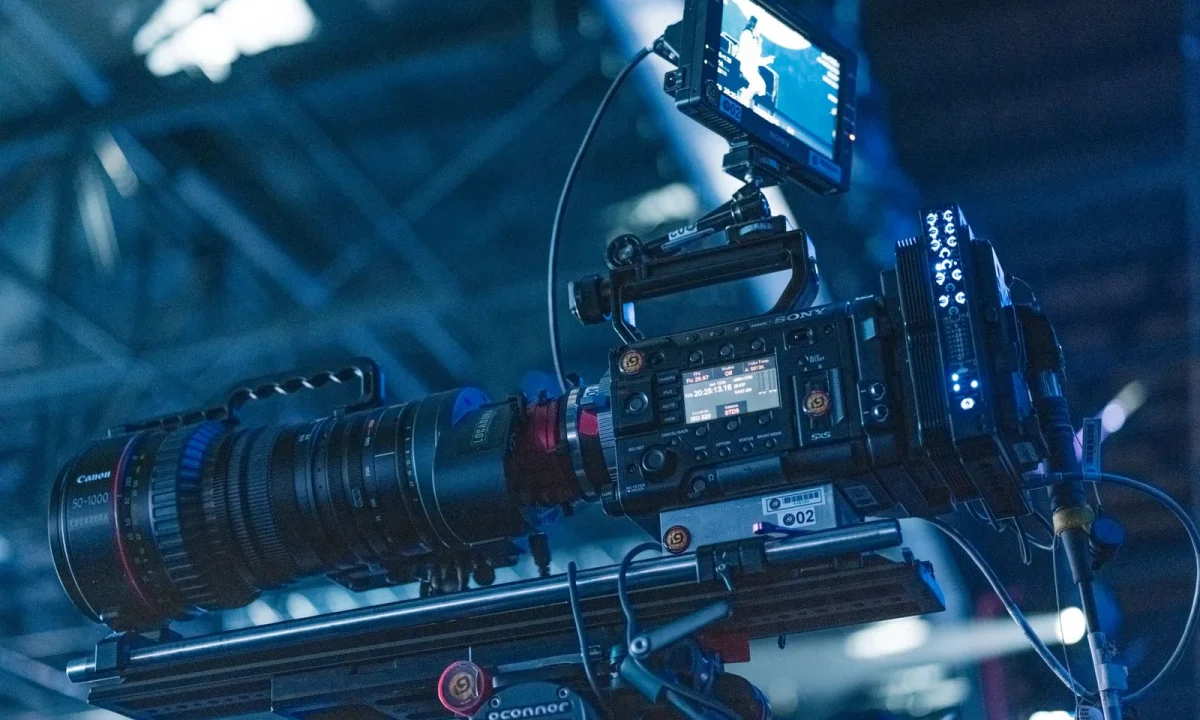
Teleprompting has moved far beyond a scroll of paper behind a camera lens. Today, trends in teleprompter technology are reshaping how content creators, video producers, public speakers, and educators prepare and deliver — from AI-assisted scripting to voice-synced scrolling and cloud-based collaboration. This guide breaks down the most relevant shifts and shows you practical best practices for putting them to work in your own recordings, presentations, and classrooms, without letting novelty get in the way of a delivery that actually connects with your audience.
Why Trends in Teleprompter Technology Matter for Your Delivery
Every shift in prompter tools exists because it promises to solve a real delivery problem: reading smoothly, maintaining eye contact, or repeating a long message consistently. When you understand what a feature is actually designed to fix, you can judge whether it deserves a place in your workflow or whether it simply adds complexity. The difference between a confident take and a hesitant one rarely comes from the newest app update — it comes from matching the right tool to the moment you are recording.
How new features change preparation habits
New features tend to push preparation upstream. Voice-synced scrolling, for example, encourages you to rehearse aloud before you record, because the system needs a natural rhythm to follow. AI rewriting tools nudge you to draft earlier, giving yourself time to review suggested edits rather than polishing at the last minute. Over time, these tools quietly reshape your habits: you write more conversationally, you run a quick test take before the real one, and you build a small buffer into your schedule. The habit shift is often more valuable than the feature itself, because it makes your preparation more deliberate regardless of which app you open.
What stays constant no matter which tool you use
No matter how sophisticated a prompter becomes, a few fundamentals never change. Your script still needs to be written in natural spoken language, broken into short lines that are easy to track with your eyes. Your eye contact still depends on placing text as close to the lens as possible, and your pacing still improves only through rehearsal. Clear lighting, readable typography, and a comfortable scroll speed remain the quiet backbone of good prompting. Tools can make these fundamentals easier to manage, but they cannot replace them — a powerful reason to master the basics before layering on automation.
Matching technology choices to your content goals
A solo creator filming weekly talking-head videos has different needs than a corporate trainer delivering the same compliance module across twelve regions. Short, punchy social clips reward fast setup and mobile-first tools, while long-form lectures benefit from reliable pacing controls and clean script formatting. Before adopting a trend, ask what your content demands: consistency, speed, accuracy, or improvisation. For a broader view of how the landscape is evolving, see our guide on Innovations in Teleprompter Technology, which maps the innovations shaping the current market.
Smart Automation and AI-Assisted Prompting
Automation is the most visible wave in current prompter software, and for good reason: manual scrolling is one of the most common points of friction during a take. Smart teleprompter apps now offer features that adjust speed automatically, respond to your voice, or even restructure your draft before you step in front of the camera. Used thoughtfully, these capabilities reduce the number of takes you burn on pacing errors. Used carelessly, they can pull you away from the natural cadence that makes speech feel human, so it pays to understand exactly what each automation does — and where it tends to fail.
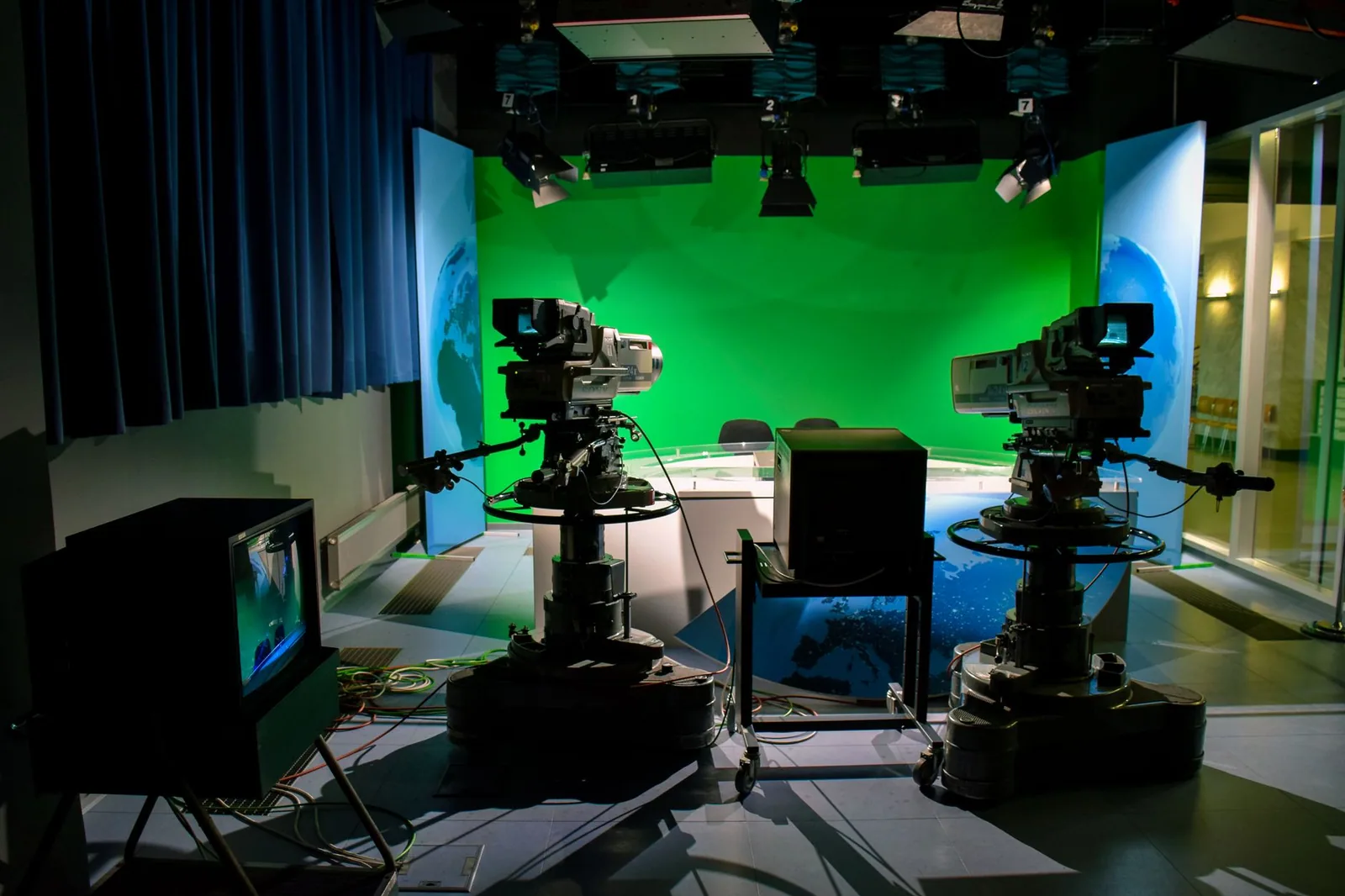
Automatic scrolling that follows your natural pace
Automatic scrolling reads your speaking speed and adjusts the text movement accordingly, which is genuinely helpful when your script contains sections you know well and sections you read more slowly. It works best when your delivery is steady and your script uses consistent line lengths, because the algorithm has a reliable pattern to track. Where it stumbles is with dramatic pauses, audience laughter, or improvised asides — moments where you stop speaking but the text keeps drifting. The practical approach is to keep a manual override handy: many apps let you nudge the scroll speed mid-take without breaking eye contact, giving you the benefits of automation with a safety valve.
Voice-synced scrolling and where it still stumbles
Voice-synced scrolling ties text movement directly to what your microphone picks up, which can feel almost magical on a clean, well-rehearsed take. It shines in controlled studio environments with consistent audio levels and minimal background noise. In busier settings — a conference hall with a microphone that picks up room chatter, or an outdoor shoot near traffic — the system can misread pauses or skip ahead when ambient sound bleeds in. Treat voice sync as a powerful option for predictable conditions, and plan a manual mode for everything else. A hybrid habit works well: start with voice sync, and be ready to switch if the environment shifts.
Using AI rewriting tools to tighten your script before you record
Many current apps now bundle AI assistance that can shorten sentences, simplify vocabulary, or convert formal prose into spoken phrasing. This is genuinely useful in the drafting stage, especially for writers who tend to over-explain or bury the point in long clauses. The key is to treat every rewrite as a suggestion rather than a final draft. Over-polished text can sound stilted when read aloud, and automated edits occasionally strip the idioms and rhythm that make your voice recognizable. Read any AI revision out loud at least once before accepting it, and keep the phrases that sound like you.
Cross-Device and Cloud-Based Workflows
Most creators no longer work in a single location or on a single machine. Scripts get drafted on a laptop, reviewed on a phone during a commute, and prompted on a tablet in front of the camera. Cloud-based prompter tools are designed for exactly this reality, keeping versions synchronized so you never record from an outdated draft. The advantage extends to teams as well: a producer can update a line remotely and have it appear on the presenter’s device before the next take. If you regularly move between studio, stage, and remote setups, a connected workflow removes a whole category of small, session-killing errors.
Writing on desktop, prompting on tablet or phone
Separating the writing environment from the prompting environment is a simple upgrade with outsized benefits. Desktop editors give you full keyboard control for drafting and revision, while a tablet or phone positioned near the lens provides a clean, distraction-free prompter surface. Many apps sync automatically between the two, so edits made minutes before a take appear on the prompting device without a manual transfer. This split also protects your concentration: the laptop stays out of the recording frame, and the prompting screen shows nothing but the script. Choose fonts and line lengths on the prompting device deliberately, since readability at arm’s length is a different problem than readability at a desk.
Syncing scripts across teams and locations
For teams, cloud sync turns a shared script into a single source of truth. When a legal review changes a sentence, or a product update alters a feature name, everyone sees the correction immediately rather than discovering it after the recording. This matters most in organizations producing high volumes of content across regions, where small inconsistencies accumulate quickly. Establish a simple convention for who can edit a live script and when changes freeze — a few minutes before recording — so collaboration stays helpful rather than chaotic. Version history is worth checking as well, since it lets you roll back an edit that reads worse than the original.
Offline reliability as a practical best practice
Cloud convenience should never become a single point of failure. Internet connections drop in studios, hotels, and event venues more often than anyone budgets for, and a prompter that depends entirely on a live connection is a liability during a session you cannot easily reschedule. Download scripts to the device before you record, confirm the app functions in airplane mode, and keep a printed copy or plain-text backup within reach. Offline reliability is not glamorous, but it is the difference between a minor hiccup and a lost shoot. Treat it as a checklist item every time you travel or change locations.
Teleprompters in Education: Trends Worth Adopting
Classrooms have quietly become one of the most natural homes for prompter technology. Students delivering presentations gain confidence when they can track their lines without looking down at note cards, and teachers recording lessons can focus on clarity instead of memorization. As covered in Exploring the Future of Teleprompters: Trends and Insights, the most effective classroom uses are the ones where the tool disappears and the learning remains the focus. The trends worth adopting here are gentle: guided scrolling, readable formatting, and rehearsal habits that build communication skills rather than dependency.
Students presenting with guided scrolling tools
Guided scrolling gives students a reliable structure during presentations, which is especially valuable for younger learners or anyone working in a second language. Instead of memorizing every line, they can focus on delivery, gestures, and eye contact with their peers — the elements that make a presentation engaging rather than merely correct. Teachers can adjust scroll speed to each student’s comfort, gradually increasing the challenge as confidence grows. The technique also teaches an underappreciated skill: writing for the ear. Students quickly learn that sentences they can say naturally are sentences that scroll well, which improves their writing alongside their speaking.
Recording lessons with on-screen cue support
Recorded lessons place a unique demand on teachers: they must explain concepts clearly in one continuous take, often without a live audience to provide feedback or buy time. On-screen cue support solves much of this by keeping key definitions, transitions, and next steps visible while the camera rolls. Unlike a full verbatim script, cue cards with short prompts let the teacher expand naturally, preserving the conversational quality that makes recorded instruction watchable. The result is a lesson video that feels delivered rather than read, with fewer reshoots because the speaker does not lose track of the structure midway through.
Keeping reading natural so teaching still feels human
The biggest risk in classroom prompting is a delivery that sounds recited. Students and teachers alike can fall into a flat rhythm when they focus too intently on the text, which drains energy from the material. Counter this by writing conversationally, using short paragraphs, and pausing deliberately at natural breaks rather than waiting for the screen to catch up. Practice sessions before class help enormously, because familiarity with the tool lets the speaker look away from the text more often. When the technology fades into the background, the teaching — the explanations, the enthusiasm, the eye contact — carries the room.
Teleprompters in Corporate Training: Practical Applications
In corporate environments, consistency is often more important than personality. A distributed training team needs the same compliance language, the same safety messaging, and the same product explanations delivered identically across offices, languages, and time zones. Prompters make that consistency achievable without forcing every trainer to memorize a script word for word. As explored in How Teleprompters Enhance Corporate Training Effectiveness, the technology works best when it supports structured delivery while leaving room for the human interaction that makes training stick.
Consistent messaging across distributed trainers
When dozens of trainers deliver the same course, small variations in wording can become significant — especially when a phrase carries legal or safety weight. A shared, version-controlled script displayed through a prompter ensures everyone says the same thing in the same order, while still allowing each trainer to add their own examples and asides. Updates roll out centrally: change the script once, and every trainer’s next session reflects the correction. This is far more efficient than emailing revised slide decks and hoping each presenter interprets them the same way. The prompter becomes a quiet governance tool, not just a reading aid.
Compliance-heavy content that must be delivered accurately
Compliance and regulatory training leaves little room for paraphrase. Key terms, required disclosures, and procedural steps must be stated precisely, and a presenter who improvises risks both confusion and liability. Prompting removes that risk by keeping exact wording visible throughout the session. To avoid a robotic tone, write the script in short, speakable segments and build in deliberate pauses after critical points — this gives learners time to absorb the requirement and gives the trainer a chance to check comprehension before moving on. The combination of precision and pacing is what makes prompter-driven compliance training reliable.
Combining prompter delivery with live Q&A segments
Most corporate sessions are not purely scripted; they include question periods where the trainer must respond spontaneously. The practical solution is to design the script with clear break points — natural transitions where the trainer can stop the scroll, address the room, and resume afterward. Modern apps make this easy with pause controls and bookmark markers that let you jump back to the exact line where you left off. Plan these transitions in advance rather than improvising them, and communicate them to the audience so the session flows naturally. Done well, the Q&A feels like part of the delivery instead of an interruption to it.
Best Practices for Adopting Any New Prompter Trend
Adopting a new feature well follows the same pattern regardless of the tool: test it in a low-stakes setting, keep your script simple, practice until the feature is invisible, and always have a backup plan. These steps take an extra twenty minutes and prevent the far more expensive outcome of discovering a problem during a session you cannot repeat. For teams building a longer-term roadmap, the structured advice in Looking Ahead: Best Practices for the Future of Teleprompters offers a useful companion to this section.
Test the feature on a throwaway take first
Before trusting any automation with a real recording, run a complete throwaway take with a short script — even two minutes of filler text is enough to expose problems. Watch the playback specifically for pacing errors, skipped lines, and moments where you lost your place. This exercise reliably surfaces issues that are invisible during a live demo, where your attention is on the feature rather than the delivery. If the feature passes, integrate it gradually into your real sessions. If it fails, you have lost a few minutes instead of an afternoon.
Keep your script format simple and readable
Complex formatting — narrow columns, dense paragraphs, inconsistent punctuation — makes any prompter harder to read at speed. Use short lines, clear paragraph breaks, and minimal punctuation beyond what your speech actually requires. Mark pauses and emphasis with a simple, consistent notation you already understand, rather than adopting an elaborate system you will forget mid-take. The goal is to make the text easy to track with a glance, so your eyes return to the lens naturally between lines. When in doubt, read the script aloud once in its final format: if it flows, the formatting is working.
Train your eyes and voice before adding complexity
Eye contact and vocal steadiness are skills, and they develop faster when you practice them without new variables. Spend a few sessions with basic scrolling before enabling voice sync or AI pacing, so you know what your natural rhythm feels like. As those fundamentals solidify, introduce one feature at a time and observe whether it improves or disrupts your delivery. This layered approach builds confidence: you always have a version of your workflow that you know works, and each new addition earns its place. Complexity introduced too early tends to become a permanent source of stress.
Set a fallback plan when technology fails mid-session
Every reliable workflow includes a Plan B. Know how to switch from automated to manual scrolling in a single tap, keep a printed script within arm’s length, and confirm your device is fully charged before the session begins. If you are recording, pause and restart the take rather than trying to recover mid-sentence — editing a clean restart is far simpler than patching a broken passage. Brief any team members on the fallback procedure as well, so the person operating the camera knows what to expect. A calm recovery from a technical failure preserves your credibility far more than pretending nothing happened.
Common Mistakes When Chasing Teleprompter Trends
The temptation to adopt every new release is real, especially when demonstrations make features look effortless. But trends are built for a broad market, and your specific delivery style, environment, and audience may not match the scenario shown in a promo video. The mistakes below are the ones that most often undermine otherwise solid setups — and each one is easy to avoid with a little patience.
Adopting features that don’t fit your delivery style
A feature that works beautifully for a fast-talking YouTube host may feel distracting for a measured keynote speaker. Match every adoption decision to how you actually deliver: if you tend to speak slowly and pause often, aggressive automation will fight you; if you improvise frequently, strict voice sync will cut you off. Evaluate features against your real take, not an idealized one. When a tool consistently works against your instincts, that is a clear signal to leave it off — no feature is mandatory just because it is available.
Letting automation override your natural rhythm
There is a subtle trap in speed-matching features: you may begin adjusting your speech to the scroll instead of the other way around. When that happens, delivery becomes reactive — you rush through sentences to keep up, or pause awkwardly because the text will not move. Your natural rhythm is an asset, and automation should serve it, not replace it. Watch your recordings for signs of this inversion, such as unexplained speed-ups or stilted pauses, and dial the automation back until your voice leads again.
Neglecting script revision when tools rewrite for you
Automated rewrites are convenient, but convenience has a cost when you stop reviewing them. An AI-tightened sentence may be grammatically perfect and still sound foreign when read aloud, particularly if it removes the contractions, transitions, and small imperfections that make speech sound genuine. Build a mandatory review step into your workflow: after any automated rewrite, read the full script aloud once, restore any phrasing that does not sound like you, and check that key terms were not altered. Your voice is the reason people are listening — protect it.
Building a Sustainable Prompter Setup for the Long Term
Trends will keep arriving, but your setup should be built to absorb them without constant reinvention. Sustainability here means choosing hardware and software that age gracefully, keeping proven fundamentals in the foreground, and reviewing your workflow often enough to catch drift before it affects your output. Guidance like Future of Teleprompters: Trends and a Practical Roadmap helps frame these decisions in terms of long-term value rather than short-term novelty.
Choosing gear that supports future software updates
Hardware that runs current software well today may struggle with tomorrow’s updates, especially on mobile devices with limited storage or older operating systems. When buying a prompter tablet, stand, or beam-splitter glass, favor options with a track record of ongoing support rather than the cheapest available choice. Check whether the manufacturer publishes updates regularly and whether popular apps in your ecosystem are optimized for the device. A slightly higher upfront investment that remains compatible for years costs less than replacing a setup that quietly stops receiving features after eighteen months.
Balancing new features with proven fundamentals
The healthiest setups combine a small number of current features with a strong foundation of basics: clean script formatting, proper lens alignment, good lighting, and rehearsed pacing. Treat fundamentals as the permanent layer and features as optional additions that must prove their value in your workflow. This balance prevents the cycle of constantly relearning tools every time an update changes behavior. When you evaluate anything new, ask a single question: does this improve my delivery, or does it just add a step? If it does not clearly improve delivery, keep your fundamentals untouched.
Reviewing your workflow after every few projects
Workflows drift. Settings get changed during a rushed session, scripts accumulate formatting quirks, and habits form without anyone deciding they should. A short review every few projects — after five recordings, three classes, or a training cycle — keeps everything aligned with your goals. Check your scroll speed settings, confirm backups are current, test your fallback plan, and note which features you actually used versus which you ignored. These reviews take minutes and consistently prevent larger problems, particularly when a software update alters scrolling behavior without warning.
Conclusion
Trends in teleprompter technology are exciting, but the best results still come from pairing new tools with disciplined script writing, deliberate practice, and a setup you actually trust. The shifts covered here — smart automation, cross-device workflows, classroom applications, and corporate consistency — each solve real delivery problems when matched to the right context, and each becomes a liability when adopted without testing. Keep your fundamentals strong, introduce features one at a time, and always know your fallback.
Start by testing one or two features that match your real workflow, whether you are recording content, teaching with teleprompters in education, or delivering teleprompters in corporate training. Small, steady adjustments will do more for your on-camera delivery than chasing every new release — and they will keep your setup sustainable long after today’s headlines have faded.
Frequently asked questions
How is AI changing teleprompter software right now?
AI features now handle auto-scroll that follows the speaker’s actual pace instead of a fixed speed, plus real-time script cleanup and filler-word reduction. The practical benefit is fewer takes and less dependence on a dedicated operator watching a control panel. Look for pacing that adjusts smoothly, because abrupt speed changes are more distracting than a slightly imperfect manual scroll.
What is gaze-correction technology and does it replace a camera-mounted teleprompter glass?
Gaze correction digitally shifts the speaker’s eyes toward the lens in post or in real time, so text can sit closer to the camera without looking off-axis. It reduces but does not fully replace beam-splitter glass, especially for live broadcasts where there is no time for processing. Use it for recorded content and interviews; keep physical glass for live delivery and eye-line precision.
Should I choose a cloud-based teleprompter over a standalone hardware unit?
Cloud or browser-based systems shine for remote teams, shared script editing, and multi-location shoots where an operator needs to drive the scroll from elsewhere. The trade-offs are latency, dependence on a stable connection, and fewer fail-safes if the network drops mid-take. For live or mission-critical sessions, keep an offline script cached locally as a fallback.
How do I avoid over-investing in teleprompter hardware given how fast the technology moves?
Favor modular setups where software drives the experience and hardware is just glass, mount, and a display, so upgrades happen through app updates rather than new equipment. Standardize on common mount sizes and tablet or phone formats to keep accessories interchangeable across brands. Reassess features annually instead of chasing every new release, since core performance gains cluster around software pacing and AI assistance.
What features matter most when evaluating a modern teleprompter app?
Prioritize responsive speed control with fine adjustments, wireless remote or foot-pedal support, and clean text rendering that stays readable at different scroll rates. Mirror mode, external display support, and import options for common document formats save setup time on set. Skip flashy extras until the pacing engine and remote reliability feel solid, since those determine whether you actually get through a take cleanly.
Recording with a script? Try Lumi.
Keep your script near the camera and out of your final video. Try free for 3 days.
Learn more


