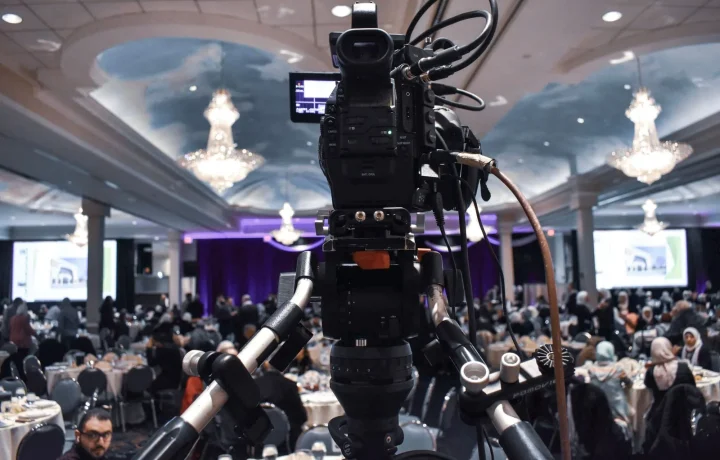
Teleprompters in education give teachers, lecturers, and student presenters a way to deliver scripted or semi-scripted lessons while maintaining natural eye contact with their audience. This guide explains what classroom teleprompters are, how the technology works behind the scenes, and how educators can apply trends in teleprompter technology and lessons from teleprompters in corporate training to improve learning experiences.
The goal is not to turn a teacher into a news anchor. A well-used prompter simply removes the anxiety of forgetting a definition, a safety step, or a key example, so the presenter can spend their attention on explanation, questioning, and timing. When the script is written for speech rather than for the page, the device fades into the background and the lesson stays in the foreground.
What Are Teleprompters in Education?
Defining the classroom teleprompter
A classroom teleprompter is any system that displays a scrolling script to the presenter at a readable distance while they face the class or the camera. It can be as simple as a laptop screen placed under the lens or as elaborate as a beam-splitter glass panel mounted in front of a professional camera. In every case, the function is identical: the speaker reads their wording accurately without looking down at notes, which keeps their posture open and their gaze directed outward. It is important to frame the device correctly — it is a delivery aid, not a replacement for teaching skill. Understanding does not come from reading fluently; it comes from the explanation, examples, and interaction that surround the words. For a broader framing of the category, see our guide to Unlocking the Potential of Teleprompters in Education.
Types: hardware units, software apps, and confidence monitors
Hardware units are the familiar glass-and-frame setups that hold a tablet or monitor in front of a camera lens, and they produce the cleanest results for filmed lessons. Software apps run on a laptop, phone, or tablet and are the entry point for most teachers, since they require no mounting hardware and can be tested in an afternoon. Confidence monitors, by contrast, sit at floor level or on a lectern and display slides, cues, or timing notes for a speaker who is not reading a full script. Choosing among them depends on whether the lesson is live, recorded, hybrid, or published later to a learning platform, and each format has a different tolerance for how closely the wording must be followed.
Who benefits: teachers, university lecturers, and student presenters
Elementary and secondary teachers often use prompters when recording short explainer videos or delivering scripted segments such as lab safety instructions. University lecturers benefit when a lecture carries precise terminology, citations, or procedural sequences that are costly to misstate. Student presenters gain the most from structured support, since a prompter lets them focus on expression instead of panicking over the next bullet point. In each case, the value scales with the stakes of accuracy and the amount of content that must be delivered within a fixed class period.
How a Teleprompter Works Behind the Scenes
Mirrored text, glass panels, and camera placement
The classic setup uses a beam-splitter glass panel angled in front of the camera lens. Text rendered on a monitor below is flipped horizontally by the software, then reflected by the glass so that it reads correctly to the presenter while remaining invisible to the camera. Because the lens sits directly behind the glass, the presenter appears to look straight at the viewer even while reading. Placement matters more than most people expect: the panel must be centered on the lens, the monitor must be close enough to avoid a wide reading angle, and stray classroom lights must not create glare on the glass.
Software scrolling, remote controls, and pacing tools
Modern prompting software scrolls the text automatically and lets the operator adjust speed with a keyboard, wheel, or handheld remote. Sliders control font size, line width, and margins, while cue markers such as bold keywords or color changes signal pauses and emphasis. Some tools add a countdown, a word-count timer, or a mirror mode that compensates for the physical reflection. Teachers recording alone typically script the scroll rate to match their natural speaking pace rather than forcing themselves to chase the text.
Why eye contact with learners still works through the beam-splitter
The illusion holds because the presenter’s line of sight passes through the glass toward the lens rather than toward a screen placed off to the side. For live hybrid classes, the same principle applies when the prompter is positioned near the webcam on a laptop. Students on camera perceive sustained attention, and in-person students still see a speaker who is facing them instead of reading from a lectern. If anything, the setup encourages shorter glance cycles, since the text is designed to be read in chunks rather than consumed continuously.

Why Educators Are Adopting Teleprompters
Consistent delivery of curriculum-critical content
Standards-aligned lessons often hinge on exact phrasing: a scientific definition, a legal condition, a mathematical assumption, or a safety protocol. A prompter guarantees that the same critical sentence is delivered correctly in every section, every section of the school day, and every re-recording. That consistency matters when multiple teachers share a unit or when a video is reused across semesters. It also reduces the downstream support load, because students receive one authoritative version of the key explanation rather than several paraphrases.
Reduced cognitive load while managing slides and demos
Teaching is a juggling act: advance a slide, run an animation, time a demonstration, monitor comprehension, and still speak clearly. When the wording is secured on screen, working memory is freed for classroom management and spontaneous follow-up questions. This is especially valuable during lab demonstrations or hardware walkthroughs, where the presenter’s hands and attention are already committed. In practice, teachers report that the script functions as a checklist as much as a script, reducing the chance of skipping a step.
Accessibility support for non-native speakers and neurodiverse learners
Prompters support presenters who need precise wording, including non-native English speakers delivering terminology-heavy content and educators reading accessibility-critical statements aloud. For students, the same principle appears in the opposite direction: a presenter who speaks with steady pacing and clear pauses gives listeners more time to process, take notes, and follow along. Delivering consistent language also helps captioning and transcription workflows produce cleaner records. The device therefore supports inclusion on both ends of the interaction, for the speaker and for the audience.
Trends in Teleprompter Technology Reshaping Classrooms
AI-assisted pacing and automatic scrolling
One of the most visible shifts is software that listens to the presenter and adjusts scroll speed in real time, so the text advances exactly as fast as the speaker talks. This removes the most common failure mode for beginners, which is reading faster or slower than the display. Related features include automatic paragraph detection and pause recognition that hold the text steady while the teacher stops to explain a diagram. For a fuller picture of where these capabilities are heading, read Innovations in Teleprompter Technology.
Mobile and tablet-first apps for blended learning
As instruction moves between classroom, home, and asynchronous video, prompting tools have followed onto tablets and phones. Mobile-first apps allow a teacher to record a revision clip in a spare office, then publish it to a learning management system the same day. Cloud sync means a script edited at school is available on a home device, and touch controls keep the setup lightweight. These trends in teleprompter technology mirror wider industry shifts toward portable, software-defined production reported by public trade sources, which is why classroom adoption is accelerating rather than plateauing.
Voice tracking and auto-focus for solo recording setups
Solo teachers often act as presenter, camera operator, and editor at once, so hardware that tracks the speaker’s position or holds focus automatically removes a whole class of retakes. Combined with auto-scroll, these features make one-person recording sessions viable without a production crew. They also reduce the technical barrier that previously pushed educators toward expensive studio arrangements. For additional reading on where the broader field is headed, see Exploring the Future of Teleprompters: Trends and Insights and Exploring the Latest Trends in Teleprompter Technology Today.
Lessons From Teleprompters in Corporate Training
Standardized onboarding and compliance modules
Corporate training departments have used prompting tools for years to produce onboarding and compliance modules that must be delivered identically to every new hire. The production logic is straightforward: write once, approve the wording, record it, and distribute it as a finished asset. Schools face the same requirement when teaching procedures, ethics statements, or examination instructions that cannot vary between classrooms. Applying that discipline to lesson videos raises consistency without demanding a larger budget.
Reusable scripts for repeated cohorts
Because corporate content is designed for repeat use, scripts are modular, versioned, and broken into short segments that can be updated independently. Educators can adopt the same structure by writing each concept as a self-contained block with a clear opening, a worked example, and a closing recap. When a curriculum standard changes, only the affected segment needs re-recording. For a deeper comparison of these workflows with school settings, see How Teleprompters Enhance Corporate Training Effectiveness.
Recording once and repurposing across LMS platforms
Perhaps the most transferable lesson is the idea of a single recording serving many surfaces: an in-class warm-up, a flipped-classroom reading, an exam revision playlist, and a parent-facing explanation. A prompter makes that single take reliable enough to publish, because the wording does not drift between attempts. Teachers who plan for reuse discover that a modest investment in scripting pays back across an entire academic year. If you are mapping a longer adoption path, Preparing for the Future of Teleprompters: A Creator Guide offers a structured starting point.
Setting Up a Teleprompter for Teaching
Choosing a device: dedicated hardware vs. software app
Start by deciding what the lesson actually requires. If the output is a polished video filmed with a dedicated camera, a beam-splitter hardware unit mounted on the lens delivers the strongest eye-contact illusion and justifies the investment. If the output is a quick clip recorded on a laptop webcam or a live hybrid session, a software app with a mirror mode is sufficient and far easier to set up. Many departments begin with software, confirm that staff will use it consistently, and only then purchase hardware for their recording space.
Script formatting: short lines, spoken language, clear cues
Format the script for the eye, not the page: short lines of roughly four to six words, generous line spacing, and one idea per line. Write in spoken language with contractions and natural connectors, since dense academic prose forces the presenter to translate on the fly. Insert explicit cues such as [PAUSE], [SHOW DIAGRAM], or [EMPHASIZE] so the reading rhythm survives the transition from text to voice. Keep slides out of the prompter itself; the script should carry the spoken words while the presentation carries the visuals.
Placement, font size, and reading speed for large rooms
In a lecture hall, font size must be legible from the presenter’s standing position, which usually means larger text and wider margins than a desktop setup would suggest. Position the monitor at or slightly below eye level to avoid a visible downward gaze, and angle the glass so ceiling lights do not reflect into the lens. Test the reading speed at the back of the room while a colleague watches the feed: if they notice you reading, slow the scroll and shorten the lines. Practical setup checklists are also covered in Looking Ahead: Best Practices for the Future of Teleprompters.
Practical Tips for Educators on Camera
Writing scripts that sound conversational, not read
The fastest way to sound robotic is to paste a written lesson plan into the prompter and read it aloud. Rewrite each paragraph as something you would say to a student standing next to you, then trim every sentence that would normally be cut in conversation. Read the script aloud once before recording, because phrasing that looks elegant on screen often trips the tongue. This simple pass usually cuts a third of the words and improves comprehension at the same time.
Pausing techniques and emphasis markers
Pauses are the difference between a lecture and a recital. Mark two or three deliberate pauses per minute in the script, especially before a definition, a formula, or a key takeaway, and let the scroll stop with you. Emphasis markers such as capitalization or bracketed notes signal where your voice should rise, fall, or slow down. Used consistently, these cues give recorded lessons a rhythm that keeps attention without requiring dramatic performance.
Practicing with a rough cut before live delivery
Record a rough take and watch it back once, focusing on pace, gaze, and whether the wording still sounds natural when spoken. This rehearsal step catches the two most common problems early: reading too fast under pressure, and drifting away from the glass while thinking. For live classes, run a two-minute dry run with the actual scroll speed you intend to use. A short practice builds the muscle memory that makes the device disappear during the real lesson.
Common Mistakes to Avoid in Classroom Use
Reading word-for-word without vocal variety
When a presenter reads every word in the same tone, students disengage within minutes, regardless of how accurate the content is. Treat the script as a floor rather than a cage: deliver the required wording, then look up and elaborate in your own voice. Vary speed, volume, and phrasing so the key points stand apart from the connective tissue. If you find yourself unable to break away from the text, the script is probably too dense rather than the technology being at fault.
Overloading the prompt with dense paragraphs
Wall-of-text scripts force small fonts, rapid scrolling, and visible eye movement, all of which read as unnatural on camera. Break the lesson into short blocks separated by slide changes or demonstration steps, and never exceed what fits comfortably on one screen at a readable size. If a section requires that much detail, it is usually a sign that the concept should be split into two segments. Avoiding these traps is discussed further in Key Mistakes to Avoid Regarding the Future of Teleprompters.
Ignoring student interaction and eye contact beyond the glass
The most common structural error is planning a lecture that never leaves the prompter. Reserve built-in moments where you step away from the text, ask a question, or check for understanding, because those are the segments students remember. In live classes, glance cycles should alternate between the glass and the room; in recordings, alternate between scripted explanations and unscripted examples. A prompter that replaces interaction has been used incorrectly, not a prompter that has failed.
Conclusion
Teleprompters in education are a practical, increasingly intelligent tool that helps educators deliver accurate, well-paced lessons while staying connected with learners. By understanding how the hardware and software work, following trends in teleprompter technology, and borrowing proven workflows from teleprompters in corporate training, teachers and creators can produce clearer, more engaging instructional content with less rehearsal stress.
The practical next step is small: pick one lesson that requires precise wording, write it in short spoken lines with pause cues, and record a single take using whatever device you already own. Review the playback, adjust the pacing, and decide whether a dedicated hardware unit would meaningfully improve your setup. From there, build the habit gradually and keep an eye on where the field is moving with resources such as The Future of Teleprompters: Trends and Innovations Ahead, Practical Insights on the Future of Teleprompters in Use, Future of Teleprompters: Trends and a Practical Roadmap, and Exploring the Future of Teleprompters: Trends and Insights.
Frequently asked questions
Do teleprompters hurt students’ ability to speak spontaneously?
Not if they are used as a support rather than a script to memorize verbatim. In most classrooms, a prompter displays keywords or outline points, which frees students from recalling exact wording and lets them focus on pacing, eye contact, and delivery. Problems arise mainly when learners read full paragraphs word for word without practice runs, so the safest approach is short bulleted cues with rehearsal time.
What is the practical difference between a mirror prompter and software-based prompting in a classroom?
A mirror or hood prompter uses a beam-splitter glass placed in front of the camera lens, so the speaker looks directly at the audience while reading; it gives the most natural eye contact but costs more and stays fixed to one recording station. Software prompters run on a tablet, laptop, or browser tab that scrolls text on screen — far cheaper and easy to roll out to a whole class, though the eye offset between camera and screen is larger and more noticeable on video.
What scroll speed and font size work best for student presenters?
Typical advice is 120–150 words per minute for novice presenters, with a font large enough to read from the speaking distance (roughly 24–36 pt equivalent on a classroom screen) and a line length short enough to avoid side-to-side scanning. Because most student speech is slower and less practiced than professional broadcast delivery, the script should be edited to fit the student’s natural pace rather than forcing the student to speed up to the scroll.
Can teleprompters help students with speech anxiety or learning differences?
Yes. For students with stuttering, social anxiety, autism, or working-memory challenges, having a continuous visual script reduces the fear of blanking mid-sentence and lowers cognitive load, which can make oral assessments more equitable. It works best when paired with accommodations like adjustable speed, high-contrast text, and the option to present from outlines instead of full sentences.
Does using a teleprompter count as cheating in a graded presentation?
That depends entirely on the learning objective the teacher sets. If the goal is memorization or extemporaneous argumentation, reading from a prompter may defeat the purpose and instructors often restrict or ban it; if the goal is professional video production, clear communication, or accessible assessment, prompting is standard practice and usually permitted. Students should confirm expectations before recording, since institutions rarely have a universal policy.
What low-cost setup can a school use to try teleprompters?
A basic setup is a scrolling app or free web tool on a tablet propped just below or above the camera lens, plus a clamp or stand so the screen sits close to the lens to minimize the eye line gap. Add a remote or keyboard for speed control and good lighting on the speaker; this covers most classroom uses without buying dedicated hardware.
Recording with a script? Try Lumi.
Keep your script near the camera and out of your final video. Try free for 3 days.
Learn more