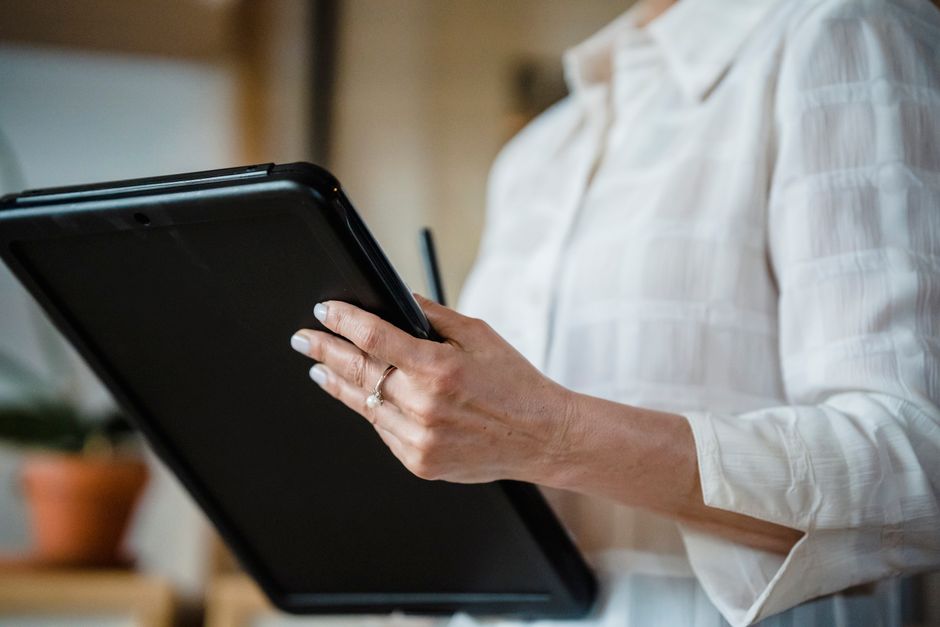
Unlock the potential of your video productions with the best teleprompter app for android tablet. This guide will walk you through the features, benefits, and usage tips to enhance your content creation process.
Understanding Teleprompter Apps
What is a Teleprompter App?
A teleprompter app is a digital tool designed to assist speakers by displaying their scripts in a scrolling format. This allows individuals to maintain eye contact with their audience while seamlessly delivering their message. Traditionally used in television and film, teleprompter apps have now become accessible for everyone, from content creators to educators. They are particularly beneficial for those who need to deliver lengthy speeches or presentations without memorizing every detail.
Benefits of Using a Teleprompter App
Using a teleprompter app offers several advantages. Firstly, it enhances your delivery by enabling you to focus on your presentation rather than worrying about forgetting your lines. Secondly, it significantly improves your pacing, allowing for a more natural flow of speech. Furthermore, many apps come with features that allow for customization, such as text size and scrolling speed, making it easier for users to read comfortably. Lastly, teleprompter apps can streamline the recording process, saving time during editing and improving overall video quality.
Key Features to Look For
User-Friendly Interface
A crucial aspect of any teleprompter app is its user interface. A clean, intuitive design allows users to navigate the app with ease, making it less stressful during recording sessions. Look for apps that offer a simple layout with clear buttons for starting, stopping, and adjusting the text display. This ensures that you can focus on your delivery rather than fumbling with the app during a shoot.
Customizable Text Display
Customization is another vital feature. The ability to adjust text size, font style, and background color can significantly enhance readability. Some apps even allow you to change the scrolling speed and direction, tailoring the experience to your specific needs. This personalization helps create a comfortable reading environment, especially when using your Android tablet in various lighting conditions.
Remote Control Options
Many teleprompter apps offer remote control capabilities, which can be a game-changer during recordings. This feature allows you to control the scrolling text from a distance, enabling better engagement with your audience. Some apps even support remote control via another device like a smartphone or tablet, giving you the freedom to adjust settings without interrupting your flow.
Compatibility with Video Recording Apps
Finally, ensure that your chosen teleprompter app is compatible with popular video recording apps. This integration allows you to record while using the teleprompter seamlessly, enhancing your overall production workflow. Look for apps that explicitly mention compatibility with applications like Zoom, OBS, or native camera apps on Android devices.
Top Picks for the Best Teleprompter App for Android Tablet
Best Free Teleprompter Apps
There are several excellent free options available for Android users. Apps like Teleprompter Pro and Simple Teleprompter offer essential features that cater to basic needs without any cost. These apps provide a straightforward experience, making them suitable for beginners or those who do not require advanced functionalities.
Best Paid Teleprompter Apps
If you’re looking for advanced features and a more polished experience, several paid teleprompter apps are worth considering. For instance, PromptSmart Pro stands out with its voice tracking capabilities, allowing the text to scroll automatically according to your speaking pace. Another strong contender is Parrot Teleprompter, which offers a comprehensive set of tools for professional use.
Comparison of Features
To help you make an informed choice, comparing features across different apps is essential. Consider factors such as user reviews, ease of use, and specific functionalities that meet your needs. You can find detailed comparisons and insights on the Best Teleprompter Apps, where various options are evaluated side by side.
How to Download and Install the App
Finding the Right App in Google Play Store
To begin, head to the Google Play Store on your Android tablet. A simple search for “teleprompter app” will yield numerous results, so take the time to read descriptions, user reviews, and ratings to find the best teleprompter app for android tablet that suits your needs. It’s also helpful to check the update frequency, as a regularly updated app often indicates continued support and improvements.
Installation Steps
Once you’ve chosen an app, tap on the install button to download it to your device. The installation process is straightforward, and you’ll see a progress bar indicating the download status. After installation, you’ll find the app icon in your app drawer, ready for you to launch.
Setting Up Your Teleprompter App
Upon opening the app for the first time, follow the on-screen prompts to set up your preferences. This may include signing in, granting permissions, and adjusting initial settings. Familiarize yourself with the user interface to ensure a smooth experience during your recordings.
Using the Teleprompter App Effectively
Creating Your Script
Before you start recording, it’s essential to create a well-structured script. Make sure to write in a conversational tone and break it into manageable sections. Many teleprompter apps allow you to import scripts from text files, which saves time and effort. This feature can be particularly useful for those who have lengthy presentations or tutorials.
Adjusting Settings for Optimal Use
After loading your script, take a moment to adjust the app settings for optimal use. This includes setting the text size, color, and scrolling speed to match your reading comfort. It’s advisable to test these settings before starting your recording to ensure everything runs smoothly.
Practicing with the App
Practice makes perfect. Spend some time rehearsing with your teleprompter app to get accustomed to the scrolling text and your pacing. This will help minimize any potential hiccups during your actual recording, enhancing your confidence and delivery quality.
Tips for Enhancing Your Video Quality
Lighting and Sound Considerations
Good lighting and sound are critical to producing high-quality videos. Ensure your recording space is well-lit, and consider using soft lighting to create an inviting atmosphere. Additionally, invest in a quality microphone to capture clear audio, as sound quality is often overlooked but vital to audience engagement.
Camera Setup and Framing
When setting up your camera, pay attention to framing. Position the camera at eye level to create a more personal connection with your audience. Additionally, ensure that your background is tidy and relevant to your content to avoid distraction. Proper framing can elevate the professional feel of your videos significantly.
Editing Your Video Post-Recording
Once you’ve recorded your video, take some time to edit it for maximum impact. Use editing software to cut out any unnecessary segments, add graphics, and incorporate transitions. This post-production work can turn a good video into a great one, making it more engaging for viewers.
Common Challenges and Solutions
Dealing with App Glitches
Like any technology, teleprompter apps can encounter glitches. If you experience issues, such as crashes or slow performance, try closing other applications running in the background to free up system resources. Restarting the app or your device can also resolve many common problems.
Maintaining Eye Contact
One of the most significant challenges when using a teleprompter is maintaining eye contact with your audience. To combat this, position the teleprompter app as close to the camera lens as possible. This technique allows you to read your script while looking directly into the camera, creating a more engaging experience for viewers.
Managing Script Length
Managing the length of your script can be tricky, especially if you have a lot of content to cover. Aim to keep your scripts concise and focused, prioritizing key points. If necessary, break longer scripts into smaller segments to avoid overwhelming yourself during delivery.
Conclusion
Choosing the best teleprompter app for your Android tablet can significantly enhance your video production quality. By following this step-by-step guide, you can effectively utilize these tools to create engaging content with ease. Remember to explore various options and experiment with settings to find what works best for you, ensuring a smoother recording experience and a more polished final product. Whether you are creating content for YouTube, educational purposes, or live presentations, the right teleprompter app will elevate your delivery and help you connect with your audience. For those seeking a professional solution, consider tools like the Lumi Notch Teleprompter for Windows & Mac to complement your Android app choice.
Frequently asked questions
How do I use a teleprompter app on my Android tablet while looking at the camera?
You need a special teleprompter hardware rig or a beamsplitter glass that mounts over your tablet’s camera. The app displays scrolling text on the screen, which reflects onto the glass. You look directly at the camera lens while reading the reflected text, creating natural eye contact with your audience.
Can I control the scroll speed of the teleprompter text while recording?
Yes, most apps offer multiple control methods. You can use a Bluetooth remote, voice activation that follows your speech pace, or an on-screen slider. For a step-by-step setup: pair your remote first, then adjust the speed setting in the app before starting your recording to find a comfortable tempo.
What features make a teleprompter app suitable for professional video production on a tablet?
Look for adjustable scroll speed, mirroring capability for reflector rigs, a clean and unobtrusive interface, and support for importing scripts from various file formats. Advanced features like external controller support, customizable font size, and a countdown timer for precise recording are also key for a professional workflow.
How do I import and format my script into a teleprompter app on an Android tablet?
Most apps allow you to paste text directly, import from cloud services like Google Drive, or open files from your device storage. For best results, format your script with short paragraphs, use clear punctuation for natural pauses, and adjust the font size and background color within the app for maximum readability.
Recording with a script? Try Lumi.
Keep your script near the camera and out of your final video. Try free for 3 days.
Learn more