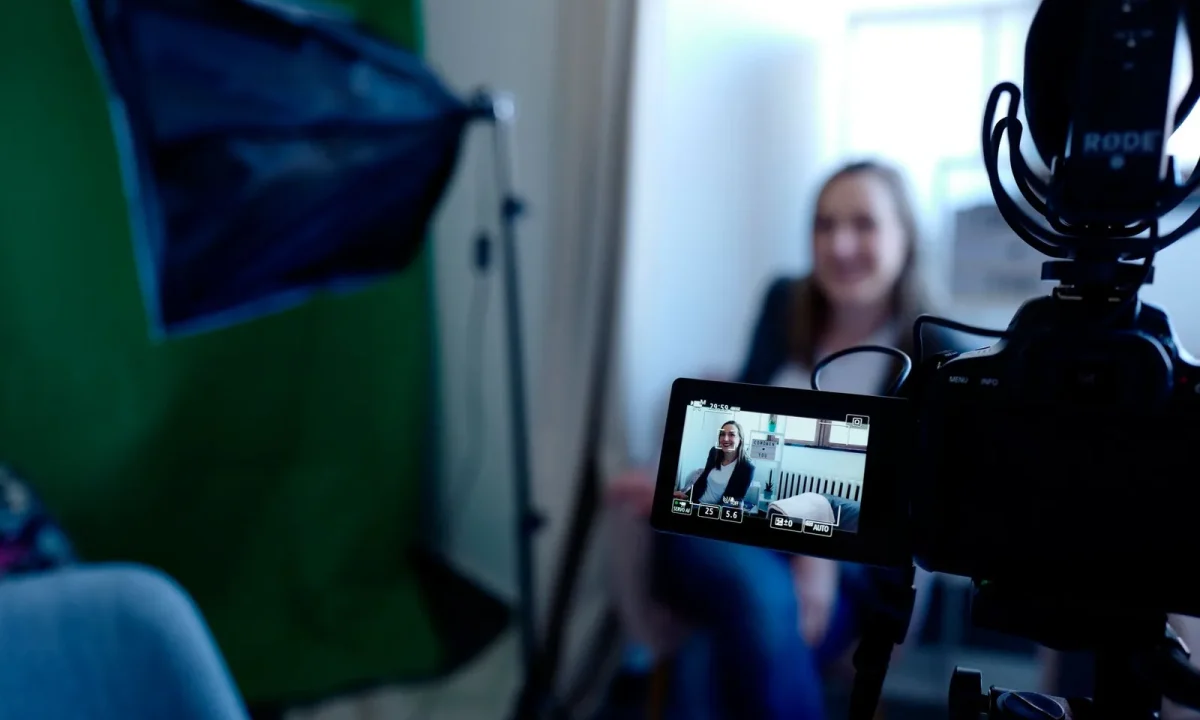
Emerging teleprompter technologies are reshaping how creators, speakers, and educators deliver scripts on camera, and you do not need a broadcast engineering background to take advantage of them. This beginner-friendly guide explains what is genuinely new, how AI in teleprompters and smart teleprompters differ from traditional scrolling hardware, and how to start with the right teleprompter apps without feeling overwhelmed by jargon. By the end, you will have a realistic first-week plan, a shortlist of features worth trying, and a clear sense of when upgrading your gear actually makes sense.
What Counts as an Emerging Teleprompter Technology
From scrolling scripts to adaptive reading tools
For decades, a teleprompter meant a fixed block of text moving upward at a speed someone set by hand, usually with a controller or a keyboard arrow. The emerging generation of tools flips that relationship: instead of you chasing the script, the script adapts to you. Adaptive reading tools track how fast you are actually speaking, pause when you pause, and hold a line steady while you gather a thought. That shift sounds small, but it removes the single biggest source of on-camera anxiety for beginners, which is the fear of falling behind or racing ahead of the text. The result is that newcomers can look at the lens instead of constantly monitoring a moving target.
Key traits that separate new tools from legacy teleprompters
Three traits reliably separate modern offerings from legacy gear. First is adaptability: the tool responds to your voice, your pace, or your scroll gestures in real time rather than running a fixed timeline. Second is intelligence around the script itself, such as suggestions for shorter sentences, pacing cues, or estimated read times before you ever hit record. Third is integration, meaning the software connects smoothly with cameras, phones, desktops, and streaming setups instead of living on a dedicated monitor that only one person in the room understands. If a product does at least one of those three things, it generally belongs in the emerging category. For a broader look at where the category is heading, the pillar guide Innovations in Teleprompter Technology is the best place to start.
AI in Teleprompters: What It Actually Does
Auto-scrolling that follows your natural speaking pace
The most common AI in teleprompter feature is pace-following scroll. The application listens to your voice through the device microphone, measures your speaking rate, and adjusts the scroll position so the line you need is always roughly where your eyes expect it. If you digress, slow down, or take a sip of water, the text waits; if you speed up, it catches up. Product descriptions from developers generally present this as a way to reduce manual control, and in practice it lets beginners keep a steadier gaze toward the camera. It is worth reading how this fits into the wider picture in Understanding AI in Teleprompters: Transforming Presentations.
Voice tracking and hands-free control
Related to pace-following is voice tracking, where the software identifies your voice specifically and uses it as the signal for scrolling, sometimes ignoring background music or a co-host who has stepped away from the mic. Hands-free control means you can start, stop, pause, and restart the script with a spoken command or a simple gesture, which is especially useful when your hands are occupied holding a product or operating a camera. For solo creators filming in a home studio, this removes the awkward moment of reaching toward the screen mid-sentence and breaking the frame. It also reduces the number of retakes caused by a scroll that stopped one line too early.
Script assistance and real-time pacing feedback
Beyond movement, some tools help you write and revise. Script assistants can flag sentences that are too long to say comfortably in one breath, suggest where to insert a natural pause, or estimate how long a section will take at a normal conversational speed. Real-time pacing feedback shows a simple indicator while you record, so you know whether you are rushing the intro or dragging the middle. None of this replaces your judgment, and you should always read the final script aloud yourself, but the feedback loop shortens the path from first draft to a take you are happy with. If you want a deeper dive into practical usage patterns, Best Practices to Leverage Emerging Teleprompter Technologies walks through them step by step.
Smart Teleprompters and How They Differ from Apps
Hardware-based smart units versus software solutions
The term smart teleprompter usually refers to a physical device: a beam-splitter glass panel mounted in front of a camera, a dedicated control unit, or a monitor with built-in intelligence that handles scrolling and tracking on its own. A teleprompter app, by contrast, is software that runs on a phone, tablet, or computer you already own. Hardware solutions generally deliver a cleaner eyeline, because you look directly through the glass at the lens while reading reflected text, and they tend to feel more solid on a busy set. Software solutions win on cost, portability, and speed of setup, since you can be recording within minutes of downloading. Both categories increasingly share the same underlying AI features, so the choice is more about workflow than raw capability. For a side-by-side sense of what hardware adds, see Smart Teleprompters: Your Complete Guide to Enhancing Presentations.
When a smart teleprompter setup makes sense for your workflow
Upgrade to dedicated hardware when the friction of the software workaround starts costing you takes. Common triggers include client-facing productions where you need a consistently perfect eyeline, multi-camera shoots where a tablet propped on a box is no longer stable, and situations where a producer needs to control your scroll from across the room. If you film short, self-shot videos a few times a week, a well-configured app will probably serve you for a long time before hardware becomes necessary. The practical rule is to let a real limitation, not a marketing feature list, justify the purchase. Beginners who want to see how creators are blending both approaches can check What Emerging Teleprompter Technologies Mean for Creators.
Teleprompter Apps for Beginners: Where to Start
Free versus paid teleprompter apps: what changes
Free teleprompter apps typically cover the essentials: paste a script, adjust the font size, set a scroll speed, and start recording. Paid tiers generally add remote control, cloud sync across devices, auto-scroll that follows your voice, mirror mode for beam-splitter glass, and export or sharing options. The honest advice for a first-timer is to start free and only pay once you have hit a specific wall, such as needing voice-following scroll or controlling the app from a second phone. A useful comparison lives in The Complete Guide to Choosing the Best Teleprompter Apps.
Compatibility with cameras, phones, and desktop setups
Before downloading anything, confirm where the script will live relative to your lens. A phone mounted beside the camera works for casual videos but will pull your gaze slightly off-axis; a tablet behind a beam-splitter gives you true eye contact but requires more hardware. Desktop apps are convenient for webinars and screen recordings, while mobile apps travel better for on-location shoots. Check that the app supports your device’s operating system, offers mirror mode if you plan to use glass, and can record or hand off cleanly to your editing software. Compatibility is unglamorous, but mismatched setups are the most common reason beginners abandon a tool in week one.
Setup checklist for your first session
Run a short checklist before your first take: format the script with short paragraphs and one idea per line, place the script as close to the camera lens as your setup allows, set the font large enough that you are not squinting, and do a thirty-second test read with audio recording enabled. Listen back for echo, check that the scroll does not outrun you, and confirm your framing and lighting are unchanged after mounting anything. Write your script in a conversational voice, since rigid written prose is what makes teleprompter delivery sound stiff. If you want a broader orientation to the category first, Exploring Emerging Teleprompter Technologies for Creators is a friendly entry point.
Matching Emerging Teleprompter Technologies to Your Content Type
YouTube videos and short-form content
Short-form content rewards speed, so the priority is a tool that gets you from script to take with minimal friction. Voice-following auto-scroll is genuinely valuable here because your edits are tight and there is little room to recover from a stumble. Keep scripts under a minute where possible, break them into punchy lines, and use mirror mode only if you are shooting through glass. For pacing and delivery tweaks specific to video, How Emerging Teleprompter Technologies Improve Your Videos is a focused read.
Live streaming and webinars
Live formats cannot be re-recorded, so control and reliability matter more than advanced features. Choose a teleprompter app that lets you jump between sections, insert cues for slides, and pause instantly when the conversation shifts. Hands-free voice control helps when you are managing a stream deck and a chat window simultaneously. Practice with the same script length you will use live, because the pressure of an audience changes your pace more than you expect.
Classroom lectures and keynote talks
Educators and keynote speakers usually need longer scripts, clear section markers, and a display positioned where a quick glance does not look like reading. Smart teleprompter hardware shines in auditoriums, but a large tablet on a low stand works well for classrooms. Consider printing a backup outline, since projectors and batteries fail at the worst moments. The emphasis should be on structure: a strong opening, clearly signposted sections, and a closing that restates the takeaway.
Common Beginner Mistakes with New Teleprompter Tools
Relying too heavily on auto-scroll and losing eye contact
Auto-scroll is an assistance layer, not a replacement for rehearsal. Beginners who let the tool do all the work often produce technically smooth reads that feel oddly blank, because the words move even when the delivery has no energy. The fix is to practice the script aloud twice before recording and to keep the camera lens as close to the text as possible, so your gaze reads as eye contact rather than a sideways glance. Treat pace assistance as a safety net that catches you, not as the engine of the performance.
Over-customizing settings before mastering the basics
New users frequently spend an evening tuning twelve settings and never finish a single take. Font weight, scroll easing, cue points, and color themes are worth adjusting only after you can deliver a clean read with defaults. Pick three variables that matter most, typically font size, scroll speed, and camera distance, then lock everything else for a week. Consistency across sessions teaches you more than constant reconfiguration, and it makes it obvious which change actually improved your results.
Ignoring script formatting for readability
The script itself is a technology, and poorly formatted text defeats even the smartest tool. Walls of long paragraphs force your eyes to travel, which makes the scroll appear to jump. Write short sentences, start new lines at natural breath points, and add visible markers for pauses or slide changes. Reading your draft aloud before recording exposes awkward phrasing that looks fine on screen but stumbles off it.
A Practical First-Week Plan with Emerging Teleprompter Technologies
Day 1-2: pick and configure a teleprompter app
Choose one free teleprompter app with solid reviews and install it on the device you already film with. Paste a one-paragraph test script, set the font large, position the device as close to the lens as your mount allows, and record a short clip without worrying about content quality. Adjust only font size, scroll speed, and distance, then save the preset so you never have to rebuild it. If you want guidance on selection, revisit Emerging Teleprompter Technologies: Innovations and Insights before committing to a paid tier.
Day 3-5: practice with AI-assisted pacing
Turn on pace-following or voice tracking if your app offers it, and film three short takes of the same script. On the second take, deliberately slow down and notice whether the scroll follows; on the third, add a natural pause mid-sentence and watch how the tool responds. Keep a simple note of what felt comfortable and what pulled your eyes off the lens. This is the phase where the technology moves from novelty to habit, and resources like Practical Ways to Use Emerging Teleprompter Technologies Effectively can accelerate it.
Day 6-7: record, review, and refine
Record one piece of content you would actually publish, then watch it back with the sound off to check eyeline and with the sound on to check rhythm. Note where you rushed, where you stalled, and whether any scroll jump was visible. Make two or three targeted changes to your script or settings rather than a full overhaul, and record again. Errors worth avoiding at this stage are cataloged in Avoiding Common Mistakes with Emerging Teleprompter Technologies, which is useful reading before you plan week two.
Conclusion
Emerging teleprompter technologies do not require a technical background to benefit from. The core idea is simple: newer tools adapt to your pace and your voice instead of forcing you to keep up with a fixed scroll, and that single change makes on-camera delivery far less intimidating for beginners. Start with one teleprompter app, experiment with basic AI in teleprompter features such as pace-following scroll, and gradually explore smart teleprompter hardware only when your workflow demands it. Consistent practice turns new tools into natural extensions of your delivery rather than distractions from it. Pick your app today, run the two-day setup described above, and let a week of short, deliberate recordings tell you what to refine next.
Frequently asked questions
What actually separates an AI-powered teleprompter from a traditional one?
Traditional teleprompters scroll text at a fixed speed that you must match, while AI-driven versions use voice recognition to advance the script as you speak. That means you can pause, improvise, or stumble without the text running ahead of you. For a beginner, this removes the biggest learning curve: keeping pace with a constant scroll rate.
Do AR teleprompter glasses work well for someone just starting out?
AR glasses can display a script in your line of sight, so you look straight into the camera instead of at a side monitor. The trade-off is that cheap models often show visible text reflections or cut off at the edges of your vision, which distracts new users more than a standard prompter would. Most beginners do better starting with a phone or tablet-based rig and moving to glasses once they are comfortable reading on camera.
What is eye-contact correction, and can it replace a teleprompter?
Eye-contact correction uses AI to digitally redirect your gaze toward the camera lens even when you are reading notes below it. It is great for post-production fixes but it does not help you deliver a live talk, webinar, or stream, and subtle artifacts can appear around the eyes in close-ups. Think of it as a safety net for recorded video, not a substitute for learning to read a prompter.
How reliable is voice-tracking scroll speed for beginners?
Voice tracking works well in quiet rooms with a good microphone, but background noise, a soft speaking voice, or heavy accents can make it drift or stall. If you are filming in a noisy or echoey space, a manual or fixed-speed scroll is still more predictable. Test the tracking on a short rehearsal take before trusting it with a long script.
What features should a beginner prioritize when choosing new teleprompter tech?
Look for adjustable scroll speed, a mirror or glass that keeps the text near the camera lens, and easy script import rather than exotic AI extras. Wireless control from a phone or clicker matters more than most add-ons, because it lets you pause and re-read without breaking eye line. Compatibility with the camera or phone you already own saves more frustration than raw display resolution.
Are smartphone teleprompter apps accurate enough for professional-looking video?
Modern apps handle speed control, mirroring, and remote scrolling well enough for polished talking-head content, especially when paired with a physical beam-splitter glass in front of the lens. Their main limit is screen readability at distance and the risk of visible eye movement on very tight close-ups. For long scripts or paid client work, a dedicated prompter display gives more consistent pacing and text size.
Recording with a script? Try Lumi.
Keep your script near the camera and out of your final video. Try free for 3 days.
Learn more


