
Choosing from the best teleprompter apps can feel overwhelming, especially when free vs paid teleprompter apps promise near-identical results on their store pages. This guide breaks down the most common mistakes content creators, video producers, public speakers, and educators make when selecting and using teleprompter app features — and shows you how to fix each one with practical, supportive tips.
Before you blame the software, notice that most of these failures begin as decision-making problems rather than tool problems. A rushed download, an untested setup, or an unread feature list can sabotage a perfectly capable app before it ever scrolls a single line. The sections below walk through each mistake in order, from selection to setup to ongoing use, so you can spot the ones already affecting your workflow and correct them without starting over.
Why Most People Pick the Wrong Teleprompter App
The wrong app rarely feels wrong at the moment of download. It feels fine during a two-minute demo, then falls apart on your third take when you realize the workflow never matched how you actually record. Treat selection as a production decision, not a shopping decision, and most of the mistakes in this guide disappear before you press record. A thoughtful starting point is Discovering the Best Teleprompter Apps for Your Needs, which frames the choice around your format rather than around a feature count.
Focusing on price instead of workflow fit
A $0 price tag or a lifetime deal can feel like the obvious win, yet price rarely predicts whether an app will survive your production day. What matters is whether the tool matches how you shoot: single-take talking heads, multi-camera interviews, live streams, or classroom lectures. Ask what happens in the first five minutes of a session — loading a script, adjusting scroll, hitting record — and compare that sequence against your real routine. Our guide Free vs Paid Teleprompter Apps: Which One Should You Choose? unpacks this tradeoff in much more detail.
Ignoring your device and camera setup
An app that shines on a tablet may stutter on the phone you actually shoot with, and features such as voice control depend on microphone permissions that behave differently across operating systems. Before committing, check the minimum OS version, whether the app runs reliably in the background, and how it pairs with a physical prompter glass or beam-splitter rig. Device compatibility is not a footnote — it is the difference between a smooth take and a crashed session halfway through your script.
Skipping research into real user needs
Download totals and star ratings tell you popularity, not fit. Look instead at how creators with formats similar to yours describe daily friction: lag when switching scripts, fonts that blur at reading distance, or exports that silently lose formatting. Longer reviews and forum threads take twenty minutes to scan and routinely save weeks of frustration. If you want a repeatable research method, Practical Insights on Teleprompter App Comparisons for Creators walks through one you can copy.
Mistake 1: Ignoring Free vs Paid Teleprompter Apps Tradeoffs
Free tiers are not broken demos; they are business models with deliberate boundaries. Understanding what each tier withholds lets you decide whether an upgrade is genuinely necessary or simply clever upselling. The same fairness applies when you evaluate tools side by side, and Effective Teleprompter App Comparisons: Best Practices Revealed offers a solid framework for keeping the comparison honest.
What free tiers usually limit
In practice, free versions tend to cap script length, restrict the number of saved prompts, remove cloud sync, or lock watermark-free export behind a paywall. Some withhold mirror mode and remote-control support — features you may not miss until you are standing three feet from a camera with no hands free. Others quietly reduce output resolution or throttle performance after a few minutes of scrolling. List the limits that would genuinely break your workflow before assuming any free tier is “good enough” for you.
When paid features actually pay off
Upgrading makes sense when paid features remove a step you repeat on every single shoot. If you record daily, a one-time unlock for multi-device sync, fine-grained autoscroll, or offline script editing can save minutes that compound into hours each month. For occasional creators the calculus differs, and a free tool may serve you better than a subscription ever will. Paid features pay off when they reduce friction in your existing routine instead of adding capabilities you will never touch.
Red flags hidden in ‘unlimited’ claims
“Unlimited scripts” means little if the app still throttles scroll performance or hides essential controls behind a subscription you cannot cancel easily. Watch for vague wording, unclear refund policies, and apps that bundle prompting into a larger suite you will never open. Cross-check marketing claims against the store changelog and recent user reports before paying anything. Free vs Paid Teleprompter App Comparisons for Creators breaks down these patterns category by category.
Mistake 2: Overlooking Essential Teleprompter App Features
Feature checklists grow quickly, but only a handful of controls change the quality of your delivery. Focus on what you will touch during a take, not on what looks impressive in a screenshot. The landscape also shifts fast, so tracking the Innovations in Teleprompter Technology helps you understand which capabilities are becoming standard and which are still experimental. For a broader capability overview, see Exploring Key Teleprompter App Features for Enhanced Presentations.
Scroll speed and voice control
Scroll speed is the single setting that decides whether you sound natural or frantic. Manual speed forces you to split attention between your words and the screen, while voice-following modes let your own pacing drive the text — the closest many apps come to a human operator. Test both during a rehearsal: if you habitually rush when you are nervous, voice control usually rescues you. A stable, adjustable scroll is worth far more than a long feature list.
Mirror mode, font sizing, and remote support
Mirror mode is non-negotiable if you shoot through reflective prompter glass, because unmirrored text forces you to read backwards and wrecks your eye line. Font sizing matters more than it sounds: text must be legible at your actual recording distance, not at arm’s length during setup. Remote support — a clicker, watch, or keyboard shortcut — keeps your hands off the phone and your body language natural. Individually these options seem minor; together they carry most of the on-set workload.
Script importing and editing on the fly
Importing from common document formats saves retyping, but the real test is whether you can fix a line mid-session without losing your scroll position. Apps that let you edit in place, undo cleanly, and jump to a marked paragraph prevent the awkward pause that breaks a take. If your scripts live in shared documents, confirm sync works under real conditions before you rely on it live. Nothing erodes confidence faster than discovering an import limitation in front of an audience.
Mistake 3: Writing Scripts the App Wasn’t Built For
Even the most capable teleprompter can only present what you give it. A script written for a printed page usually scrolls faster than you can speak it, which is why many creators blame the software for pacing problems they created in the document. Treat the script as part of the tool: written correctly, it makes almost any app feel smoother, and written poorly, it makes the best one feel broken.
Why short sentences beat long paragraphs
Short sentences give your eyes predictable landing points and your voice natural places to breathe. Long paragraphs, stacked clauses, and buried qualifications force you to scan ahead, which pulls focus away from the lens and makes delivery feel mechanical. Aim for one idea per sentence and break wherever you would naturally pause. Writers who adopt this habit consistently report fewer retakes, regardless of which app ends up on screen.
Punctuation habits that control pacing
Commas create micro-pauses, periods create full stops, and ellipses invite hesitation — treat them as timing marks rather than decoration. Dash-heavy writing reads as rushed on screen, while a colon followed by a short clause gives your audience a beat to absorb the point. Read the script aloud once while editing; wherever you run out of breath naturally, insert a period. That single habit aligns written pacing with spoken pacing before the app ever starts scrolling.
Formatting for auto-scroll readability
Consistent line length, generous line spacing, and a single font weight help auto-scroll keep text where your eyes expect to find it. Avoid justified text, which creates uneven word gaps that slow reading, and keep headings visually distinct so you can track structure at a glance. Numbered steps work especially well for tutorials because they signal sequence without adding words. Format for the screen in front of you, not for the page you would print.
Mistake 4: Setting Up the App and Camera Incorrectly
Hardware placement and software configuration tend to fail together rather than separately. A perfectly tuned app still looks wrong if the glass, lens, and lighting disagree with each other, so treat the physical rig as part of the tool instead of a separate chore. Nine out of ten “the app is lagging” complaints resolve into a setup issue once you examine distance, brightness, and test footage together.
Wrong distance between lens and glass
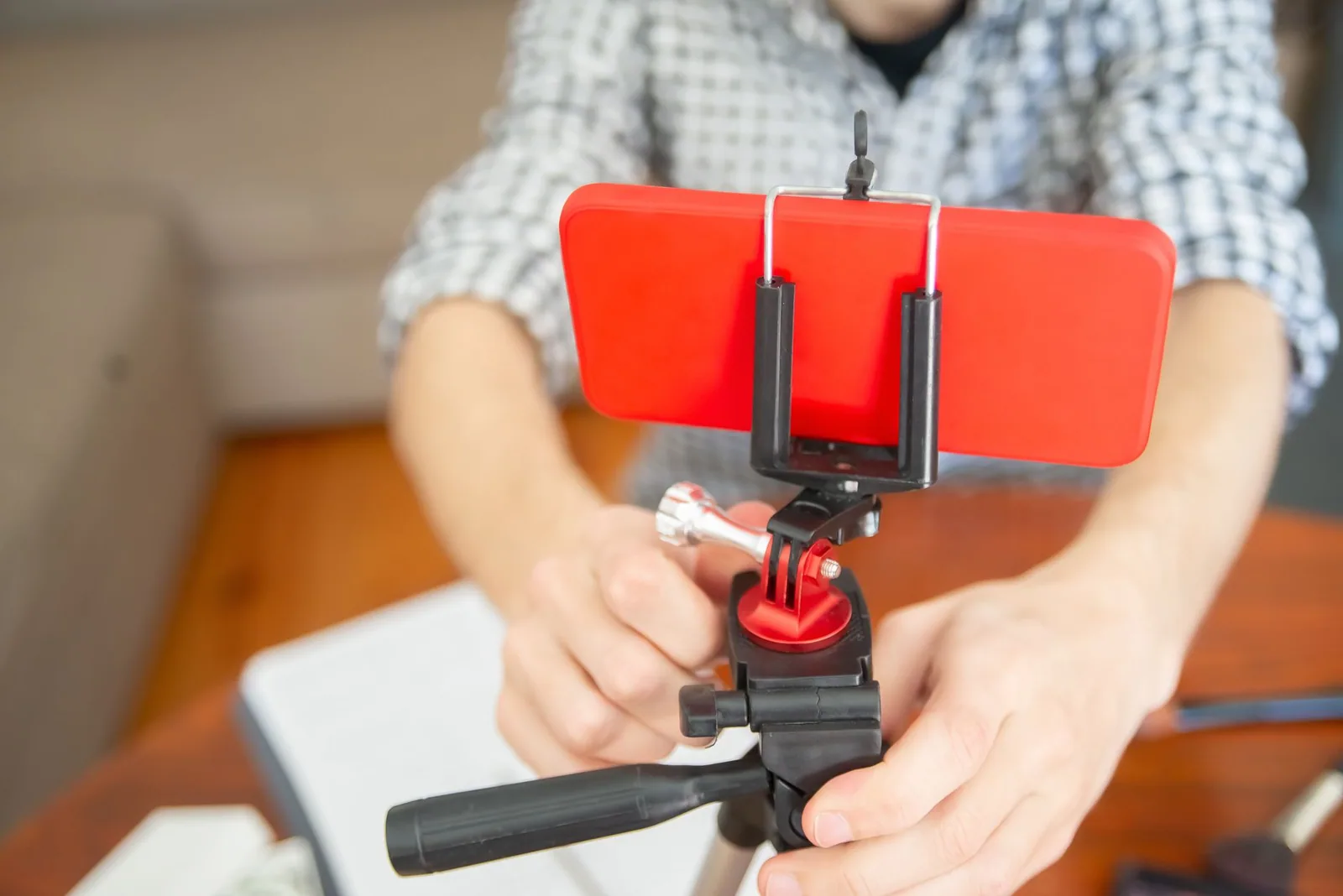
The classic error is placing the camera too close to the beam splitter, which crops your eye line and makes the text appear at an angle you have to chase. Keep the lens centered behind the glass, leave clearance for a hood, and position the prompter so your reading line sits as close to the lens axis as your rig allows. If you shoot without glass, mount the device directly
Frequently asked questions
What is the biggest mistake people make with the best teleprompter apps?
Setting the scroll speed too fast and then trying to keep up with it, which makes delivery sound rushed and unnatural. Most apps let you adjust speed on the fly, so start slower than feels comfortable and let the words come to you. A second common error is placing the screen too far from the camera lens, breaking eye contact with viewers.
Should I write my script differently for a teleprompter app?
Yes. Write for the ear, not the eye: short sentences, contractions, and natural pauses marked with line breaks so your eyes do not have to hunt for the next phrase. Reading copy written for print on camera usually sounds stiff, and long sentences force awkward mid-thought breathing.
Can a teleprompter app make me sound robotic on camera?
It can, if you treat the scrolling text as a rigid script rather than a cue. The fix is to write conversational copy, add intentional pauses, and practice the passage aloud before recording so you are recalling phrasing instead of decoding it. Many presenters also deliberately skip or reword small words in the moment to keep their delivery human.
How do free and paid teleprompter apps really differ?
Free tiers typically cover basic scrolling text and speed control, while paid plans add the features that matter in production: video recording with the script overlay, Bluetooth remote support, screen mirroring to a beam-splitter glass, watermark removal, and unlimited script length. The biggest practical gap is usually remote control and multi-device sync, which free versions often lock.
Do teleprompter apps work for live events as well as recorded videos?
They do, but only if you pick an app that supports an operator-controlled or remote-driven pace instead of a fixed auto-scroll. Live use also demands low-latency screen mirroring to stage monitors and the ability to jump or reorder segments on the fly, since a live speaker cannot pause to fix a scroll glitch.
How do I test a teleprompter app before committing to it?
Run a full dress rehearsal with your real script length, your real camera setup, and the actual lighting and distance you will use on shoot day. Check font scaling at that distance, how smoothly speed can be changed mid-take, and whether the app keeps your place after a pause. A five-minute test with production conditions exposes problems that a quick feature-list comparison never will.
Recording with a script? Try Lumi.
Keep your script near the camera and out of your final video. Try free for 3 days.
Learn more


