Choosing among the best teleprompter apps can feel overwhelming when every app promises smoother delivery and faster workflows. Most listings compare spec sheets instead of real production days, so an app that looks powerful on a store page may still slow you down the moment you are standing in front of a camera with three minutes of battery left. This guide breaks down what separates a genuinely useful app from a forgettable one, covering free vs paid teleprompter apps, the teleprompter app features that matter in real production, and practical ways to match an app to your role as a content creator, video producer, public speaker, or educator.
The goal here is not to hand you a ranking that will be outdated by next quarter. It is to give you a repeatable way to judge any contender against your own workflow, so the decision holds up months from now when your scripts get longer, your gear changes, or your team grows. Work through each section with your actual production habits in mind, and the right choice becomes far less of a gamble.
How to Evaluate Teleprompter App Features Before You Commit
Start by separating the features you will touch on every take from the settings you will open once and never find again. A teleprompter app earns its place by removing friction from the loop of load, read, record, and repeat, not by burying you in menus. Write down the three or four functions you perform before every single recording, then grade each candidate app on how fast and reliably it handles exactly those steps. Everything beyond that list is a bonus, not a reason to buy.
It also helps to think in terms of failure modes rather than wish lists. Ask what happens when the script is 4,000 words, when your tablet is in landscape, or when the room has no Wi-Fi. Apps that answer those questions gracefully tend to be the ones you keep; apps that shine only in the demo video tend to frustrate you by the third shoot. For a deeper look at how individual capabilities stack up, see Exploring Key Teleprompter App Features for Enhanced Presentations.
Reading controls: scroll speed, mirroring, and font sizing
Scroll speed is the single most-used control in any teleprompter, so test it with a real script rather than a sample sentence. You want smooth, incremental adjustments that you can change mid-recording without breaking eye contact, plus a sensible default you can fall back to. Mirroring matters as soon as you point the device at a beam-splitter rig, and font sizing should scale without reflowing your paragraphs into awkward line breaks. If any of these require more than one tap, they will annoy you a hundred times an hour.
Script import options and formatting flexibility
Consider where your scripts live before you fall in love with an app that only accepts typed input. The most practical tools let you paste from a document, import from cloud storage, or open a shared file your editor already sent you, while preserving paragraph breaks and cue markers. Formatting flexibility matters too: adjustable line length, paragraph spacing, and highlighted phrases can make the difference between natural delivery and a visibly mechanical read. A script you have to reformat every time you open the app is a script you will start avoiding.
Recording integration and device compatibility
Some apps bundle a camera, while others assume you will record with a separate device or a dedicated camera body. Neither approach is wrong, but the choice changes your setup considerably, so confirm which one matches how you already shoot. Device compatibility covers screen sizes, orientation locks, front and rear camera access, and whether the app behaves on a tablet you plan to mount on a stand. Confirm these basics before anything else, because an app that cannot run reliably on your primary device is disqualified regardless of its feature list.
Free vs Paid Teleprompter Apps: What Actually Changes
The line between free and paid tiers is rarely about whether an app works — almost all of them work — and more about how much friction you are willing to tolerate. Free tiers typically cover core scrolling and basic script handling, which is exactly what a beginner filming weekly videos needs. Paid plans usually add workflow depth: multi-device sync, longer script limits, advanced mirroring, voice-following, priority support, and the removal of ads or watermarks. Understanding where the boundary sits for your specific use case is more useful than memorizing price points, and Free vs Paid Teleprompter Apps: Which One Should You Choose? walks through that decision in detail.
A useful habit is to compare total cost of use over a year rather than the sticker price. An app that costs a modest subscription but saves you twenty minutes of setup on every shoot may pay for itself quickly, while a free app that forces constant workarounds can quietly cost far more in retakes and frustration. Do the math with your own schedule, not with an abstract notion of value.
Where free tiers genuinely hold up for beginners
If you are publishing one or two videos a month and still experimenting with your format, a free tier is often the sensible starting point. You get to learn how you actually read on camera — where you glance, how fast you talk, which cues you rely on — before committing money to a tool whose weaknesses you do not yet understand. Just be honest about the limitations: ads, capped script length, or a visible watermark can undercut a video you otherwise love, and some of those restrictions appear only after you have invested time in the app.
What paid plans typically unlock for professionals
Professional plans tend to concentrate on consistency and control, which is what matters when other people depend on your output. Expect features such as unlimited script length, synchronized control from a phone or remote, cloud backup across devices, higher-quality recording options, and support channels that respond when you are mid-project. These additions rarely feel glamorous in a demo, but they are the ones that keep a shoot from stalling. For a broader view of how these capabilities shape purchasing decisions, browse Free vs Paid Teleprompter App Comparisons for Creators.
Hidden costs like ads, watermarks, and cloud storage limits
Watch for the expenses that never appear on a pricing page. Ad interruptions during a take, watermarks on exported footage, storage caps that force you to re-download scripts, and paywalled exports all add up in time and polish. When you evaluate options, log every interruption you hit during a single test session; that log usually tells you more than any feature table. The same caution applies to add-ons like pedals or cloud sync that are marketed as included but only work in a premium bundle.
Matching the Best Teleprompter Apps to Your Use Case
The phrase “best teleprompter apps” hides an assumption worth challenging: that one app suits everyone. A solo creator filming alone in a bedroom has almost nothing in common with a four-person crew running cameras, lighting, and audio, so the ideal tool for each will differ in interface, control scheme, and price. Map your role first, then shortlist apps designed around that rhythm. If you want to see how different profiles compare head to head, Practical Insights on Teleprompter App Comparisons for Creators offers a useful framework.
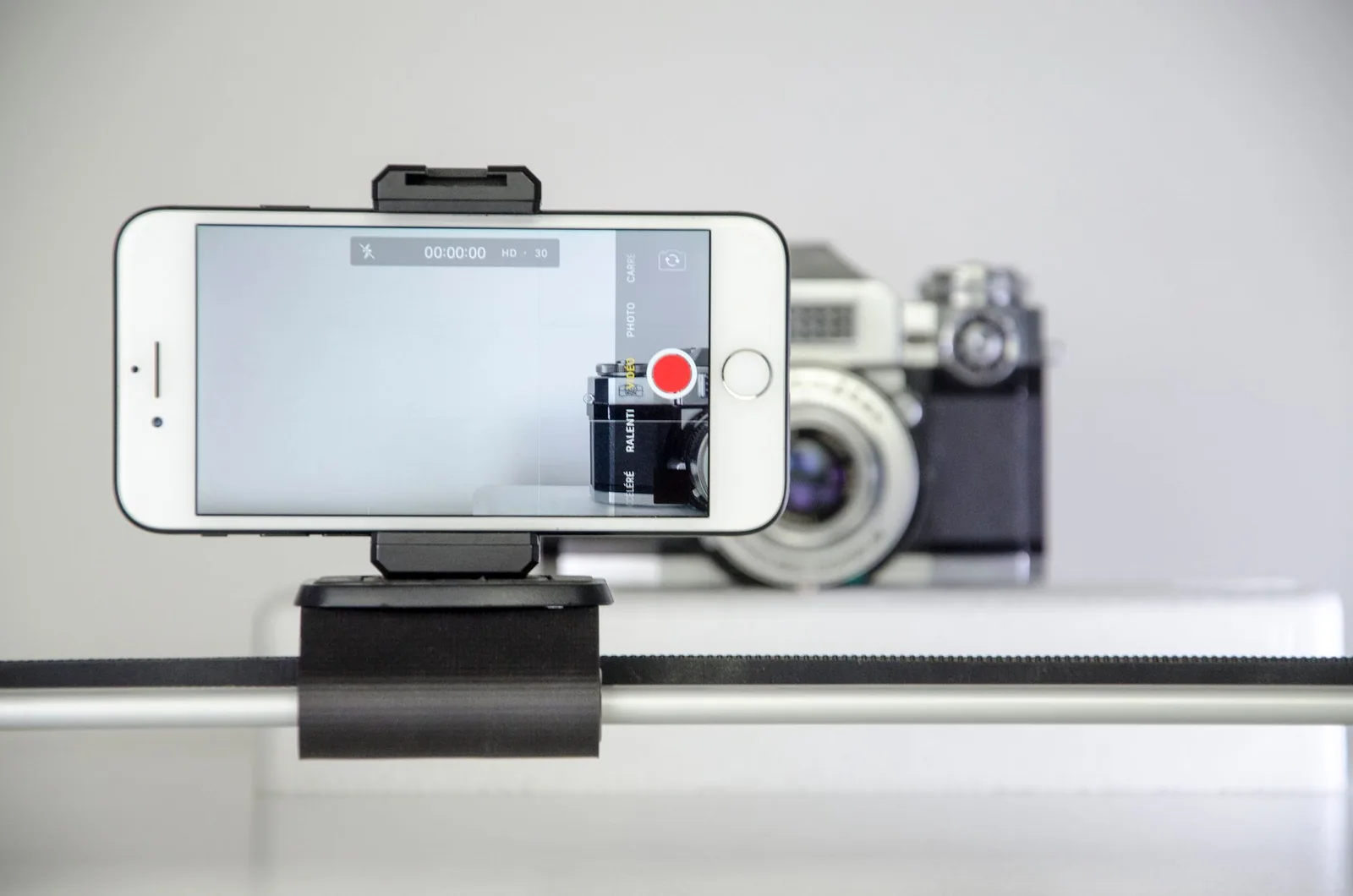
Think about who controls the script, who controls the pace, and how many takes a typical session requires. Those three questions usually point toward a clear answer faster than any feature checklist.
Content creators filming talking-head videos
If you record yourself alone, speed of setup is everything, because every extra step happens while you are already on camera. Look for one-tap script loading, adjustable scroll that you can nudge mid-take, and reliable front-facing camera support so you can monitor yourself. Voice-follow and marker cues are genuinely valuable here, since you have no operator to adjust speed for you. A lightweight app that loads instantly will outperform a feature-rich one that takes thirty seconds to boot on every take.
Video producers running multi-camera shoots
On a set, the prompter is a shared instrument, and reliability under pressure matters more than elegance. Producers usually need remote or pedal control, the ability to hand the script to a director mid-session, and mirroring for beam-splitter configurations. Script versioning becomes important too, because last-minute edits are normal and everyone needs to be reading the same line. Here, a paid plan with sync and support tends to justify itself quickly.
Public speakers and educators presenting live
Live delivery adds a constraint that recorded video does not: you cannot stop and reload. Presenters need large type, high-contrast themes, generous paragraph spacing, and pause cues that let them hold a moment without losing their place. Offline reliability is non-negotiable, since conference Wi-Fi is unpredictable, and a secondary control method — a clicker or foot pedal — keeps your hands free. For a step-by-step approach to evaluating these live-specific needs, see How to Run Teleprompter App Comparisons, Step by Step.
User Interface and Setup: The Speed Test That Matters
Interface quality is easiest to judge under time pressure, because that is when design shortcuts show themselves. Time how long it takes to go from opening the app to having your script scrolling exactly the way you want, and compare that number across contenders. A difference of twenty seconds sounds trivial until you repeat it across a dozen takes in a single afternoon. The apps worth downloading make the common path short and leave the advanced options reachable but out of the way.
Loading a script in under a minute on set
On set, a script is rarely loaded once — it is loaded, edited, reloaded, and sometimes swapped entirely. Favor apps that remember your last position, restore formatting automatically, and let you jump to a marked section without scrolling manually. If loading a script requires navigating folders or re-entering text, you will feel that friction every time the writer sends a revised line. Consistency here is a quiet but decisive advantage.
Remote control and pedal support
Anything that lets you control scrolling without touching the screen keeps your delivery natural, because visible hand movement draws the viewer’s eye. Remotes, pedals, and even hardware volume buttons give you tactile control you can operate by feel while maintaining eye line. Check which protocols are supported and whether they work while the app is recording, since some apps drop connectivity during capture. For more on the controls that improve presentation flow, revisit Effective Teleprompter App Comparisons: Best Practices Revealed.
Offline reliability when Wi-Fi drops
An app that insists on a connection to open a script is a liability in venues, studios, and travel situations. Confirm that scripts cache locally, that recording continues without a network, and that nothing tries to sync at the worst possible moment. Test this deliberately by switching to airplane mode during a dry run rather than discovering the limitation live. Offline confidence is one of the clearest signals that an app was built by people who have actually worked on sets.
Reading Experience Features That Improve Delivery
Ultimately the app exists to make you sound like yourself, not like someone reading. The reading experience determines whether your delivery feels connected to the audience or visibly tethered to a screen, and small adjustments compound across a long take. This is where the teleprompter app features you use every session quietly earn their keep, shaping pace, emphasis, and comfort without ever calling attention to themselves.
Pay attention to how you feel after a five-minute read in each candidate. Eye strain, awkward neck angles, and forced pacing are all signs that the reading layer needs work, and they are difficult to fix later with a settings change.
Adjustable scroll speed and voice-follow options
Manual speed control should be granular enough to match a change in your speaking rhythm, with adjustments that do not jump or stutter. Voice-following goes further by tracking your speech automatically, which helps when your script has dense passages or when you improvise around the written line. It is not perfect in every app, so test it with your own voice and typical recording environment rather than a polished demo. When it works well, it removes the single biggest distraction in self-operated prompting.
Marker and pause cues for natural emphasis
Written scripts rarely map perfectly onto spoken delivery, which is why markers, bold cues, and pause indicators matter. They give you a visual nudge to breathe, slow down, or land a point, and they prevent the flat monotone that comes from reading uninterrupted blocks of text. Look for an app that lets you place and edit these cues quickly, ideally without leaving the reading view. Good cue support is one of the fastest ways to reduce retakes.
Mirror mode for beam-splitter rigs
If you mount the device behind glass, mirrored text is mandatory rather than optional, and the implementation should be instant and reversible. Check that mirroring applies to cues and formatting as well as body text, and that the app supports horizontal flip without affecting your recording. Test it in the exact rig you plan to use, because orientation bugs tend to surface only at particular angles. For an overview of how prompting hardware and software have evolved together, read Innovations in Teleprompter Technology.
Testing an App Before You Standardize On It
Screenshots and reviews can narrow a list, but only real footage settles the question, so treat your shortlist as a hypothesis to be tested. Record the same short segment with each contender, using the script length and environment you actually work with. Then review the recordings side by side, watching for eye line, pace, hesitation, and any moment where the tool pulled your attention away from the message. This kind of practical evaluation is covered from several angles in Teleprompter App Comparisons: Finding the Best for You.
Running a three-take comparison test
Three takes per app is enough to reveal most patterns without eating a whole afternoon. Use the first take to learn the interface, the second to settle into a natural pace, and the third to judge the app under realistic conditions. Keep the script, lighting, and camera position identical across apps so the only variable is the prompting tool. If one app consistently produces fewer restarts and a calmer read, that is your answer.
Evaluating on the phone or tablet you actually shoot with
An app judged on a newer device than you own may perform very differently on your daily driver, where storage, battery, and screen brightness are already under strain. Test on the exact hardware you will mount on set, in the orientation and case you normally use. Notice how the app behaves when the battery is low or the screen dims, since prompter apps often run for long stretches. Performance parity matters more than any benchmark score.
Checking export and backup of your scripts
Scripts are intellectual property, and an app that makes them hard to extract is effectively holding your work hostage. Verify that you can export in a readable format, back up locally, and restore after a device change or reinstall. Check the fine print around account deletion too, because some services remove your content along with the account. Reliable export also makes future switching painless, which keeps you in control of the decision.
Common Mistakes When Picking a Teleprompter App
The most common error is buying a feature list instead of a workflow fit, which produces apps that are impressive on paper and irritating on set. Before downloading anything, describe your ideal session in one sentence — who reads, who controls, where the recording happens — and reject apps that do not fit that sentence. A long feature table cannot compensate for a tool that fights your habits. Keep the analysis grounded in use rather than novelty, as Avoiding Common Pitfalls in Teleprompter App Comparisons emphasizes.
Two smaller mistakes cause disproportionate damage. The first is ignoring update history and support responsiveness, since an abandoned app can break the moment your operating system updates. The second is skipping script length and scrolling limits, which only become visible when you paste in a long keynote and discover the cap. Both are easy to check in advance, and both save you from an unpleasant surprise mid-project.
Buying on features instead of workflow fit
Feature-focused buying leads to apps loaded with tools you will never open while the features you rely on remain awkward. Prioritize the handful of actions you repeat daily and evaluate each app against those specifically. If the essentials are fast and the extras are simply present without cluttering the interface, you have likely found a good match. Restraint here pays off in daily comfort.
Ignoring update history and support responsiveness
Check when the app was last updated, how frequently it receives improvements, and whether support replies within a reasonable window. An active update cadence suggests a team that responds to device and operating system changes, which directly affects long-term reliability. Community reviews often reveal whether reported bugs actually get fixed. These signals are imperfect, but they are far more predictive than a polished store page.
Skipping the script length and scrolling limits
Free and even some paid tiers impose character caps, script counts, or session limits that only surface with a real document. Paste in your longest script during the trial and confirm it loads, scrolls, and saves without truncation. Also verify how the app handles very long single-line paragraphs, which can destabilize scrolling in weaker tools. For a broader catalog of what to verify before choosing, see Teleprompter App Comparisons: Features, Benefits, and More.
Conclusion
The best teleprompter apps are the ones that disappear into your workflow: fast to load, comfortable to read from, and priced fairly for the work you do. Start by listing the teleprompter app features you genuinely need, test a shortlist against real takes, and decide whether a free tier covers your current stage or a paid plan pays for itself in saved retakes. Whatever you choose, treat the decision as revisitable — your needs will evolve as your production does.
A practical next step is simple: pick two or three candidates, run the three-take test this week, and compare the footage rather than the interfaces. Whichever app survives that comparison is the one worth downloading today, and you can always revisit the choice when your scripts get longer or your crew gets bigger. If you want a starting shortlist, Discovering the Best Teleprompter Apps for Your Needs is a good place to begin.
Frequently asked questions
What should I look for when comparing the best teleprompter apps?
Prioritize scroll control quality: adjustable speed with smooth acceleration, plus the ability to pause and resume instantly. Then check script import and formatting options (DOCX, PDF, TXT), display mirroring for beam-splitter glass rigs, and whether the app works offline. Battery drain and whether the app keeps running while a screen recorder or camera is active are the details that separate the good apps from the frustrating ones.
Are free teleprompter apps good enough for professional work?
For short talking-head videos and occasional use, yes — many free versions handle basic scrolling and speed control perfectly well. The limits usually show up as watermarks, ad interruptions, capped script length, or the absence of remote and mirroring support that a real production workflow needs. Once you are recording regularly or presenting live, the paid tier typically pays for itself in reliability alone.
Which teleprompter app features matter most for live presentations?
Real-time speed adjustment and instant manual override matter more than anything else, because live speakers drift from their planned pace. Also look for remote control support, low latency between input and scroll, a high-contrast large-type mode readable from a distance, and a reliable way to jump back to a section if you lose your place.
Can I use one teleprompter app on both my phone and tablet?
Most major teleprompter apps are cross-platform and let you use the same account on multiple devices, but purchases are often tied to a single app store, so an iOS license will not unlock an Android version. Cloud script sync is the feature that makes multi-device use actually practical — without it you end up emailing scripts to yourself. Check the developer’s device limit before assuming a family or studio plan is needed.
Do I need a separate remote or pedal with a teleprompter app?
Not strictly — many apps offer voice-follow scrolling or on-screen tap controls that work fine for casual recording. But a small Bluetooth remote or foot pedal gives you silent, hands-free speed control, which matters as soon as you are on camera with props, a guest, or a live audience. It is the cheapest upgrade that most noticeably improves delivery.
How do I test a teleprompter app before committing to it?
Use the free tier or trial with one of your real scripts rather than a demo file, and run a full rehearsal at your normal reading pace. Check three things: whether the text stays smooth at your speed, how it looks through your actual rig or from your real viewing distance, and what happens when you interrupt, rewind, or switch apps mid-session. A ten-minute dry run will surface most deal-breakers.
Recording with a script? Try Lumi.
Keep your script near the camera and out of your final video. Try free for 3 days.
Learn more


