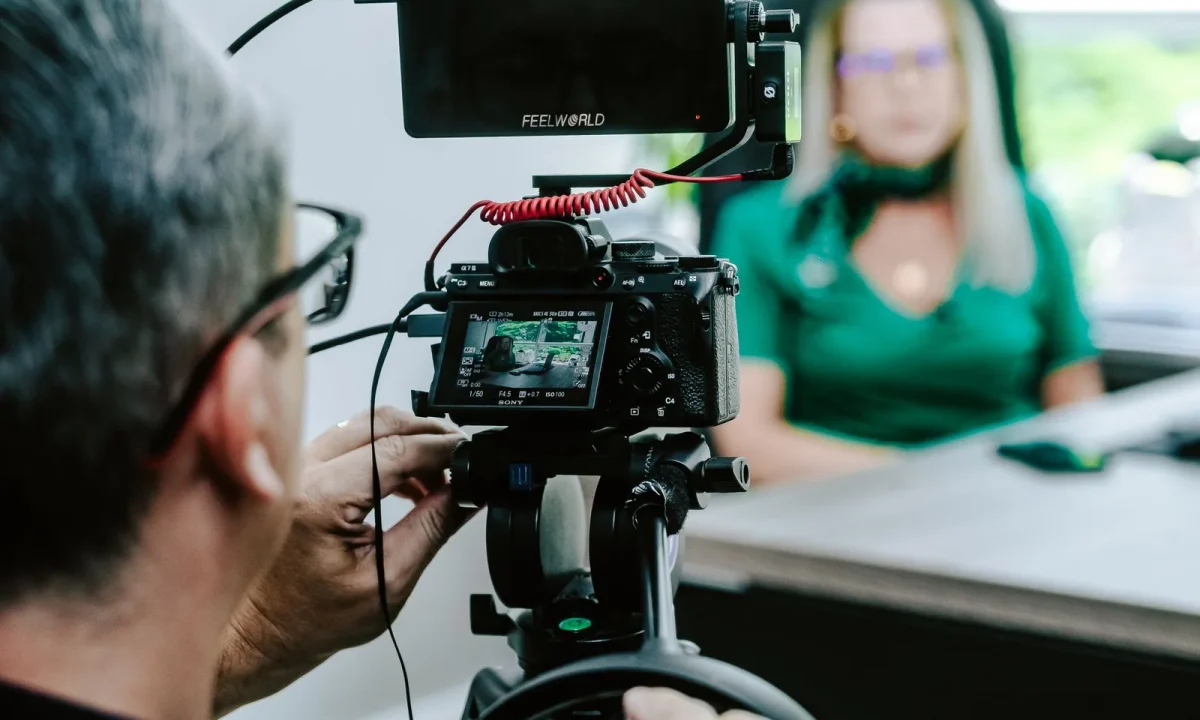
A live streaming teleprompter turns nervous energy into smooth, confident delivery when you approach it with a structured plan instead of improvising on air. This step-by-step guide walks content creators, video producers, public speakers, and educators through planning, setting up, and refining a teleprompter workflow for live events — so you can focus on engaging your audience instead of scrambling for your next line.
Going live often feels overwhelming, but most of that pressure comes from an unclear process rather than from the camera itself. What follows is a complete workflow: prepare your script, choose and configure your tools, build a dependable broadcast environment, deliver with presence, then review and iterate. Each stage is designed to be repeatable, so your tenth broadcast feels noticeably calmer than your first.
Why a Live Streaming Teleprompter Changes the Game
What makes live delivery different from pre-recorded video
Pre-recorded video forgives almost everything: you can restart a sentence, edit out a long pause, and reframe a shot after the fact. Live broadcast removes that safety net, so timing, clarity, and composure have to happen in one take. A prompter solves the biggest live risk — losing your place under pressure — by giving you a visible structure to return to whenever your train of thought drifts. That structure frees up the mental bandwidth you need to watch chat, read the room, and respond in the moment.
How a teleprompter supports consistent messaging
Consistency matters most when a message has legal, educational, or brand weight, because a single misstated detail can ripple through the entire stream. A well-written script keeps your key points, product names, and calls to action worded exactly the same way every time, regardless of how tired or rushed you are. If you want the bigger picture behind the tool itself, Understanding Live Streaming Teleprompters: Functions and Benefits explains what the hardware and software actually do. Treat it as a teleprompter for live events that protects your message while still leaving room for personality.
Common fears about reading on camera and how to address them
The most common fear is that viewers will notice you reading and perceive you as stiff or inauthentic. In practice, the giveaway is not reading itself but a fixed stare, monotone pacing, and zero interaction — all of which come from an untested setup rather than from the prompter. Audiences also rarely rewatch broadcasts frame by frame; they respond to energy, clarity, and whether you seem present. The fixes are practical: natural sentence rhythm, deliberate eye-line choices, and enough rehearsal that the words feel spoken rather than recited.
Step 1: Prepare Your Script for Live Reading
Writing short, conversational sentences
Long, clause-heavy sentences are hard to track while scrolling and harder to say out loud without catching your breath mid-thought. Write the way you speak: short subject-verb-object lines, one idea per sentence, and contractions where they feel natural. Read every line aloud as you draft, because anything you stumble over sitting at your desk will trip you up live. The goal is a script that sounds like you talking, not like a press release being performed.
Using cue words and natural pauses
Cue words such as “now,” “here’s the thing,” or “let’s look at” signal transitions for both you and the viewer, and they give your eyes a momentary anchor while the prompter scrolls. Mark pauses explicitly with a slash or a blank line so you don’t rush through breathing room. Pauses also make space for live interaction, comments, and screen graphics that need a beat to land. If you want a deeper foundation on writing for the glass, start with Mastering Teleprompter Usage.
Marking emphasis and ad-lib moments
Use simple annotations — caps for emphasis, brackets for ad-lib sections, and a note like “[Q&A]” where you plan to break from the script. These markers keep you from accidentally reading stage directions aloud while still reminding you where to raise your voice or wing it. Color-coding emphasis versus filler can further reduce processing time at a glance. The result is a script that reads like a map rather than a wall of text.
Step 2: Choose and Configure Your Tools
Matching the teleprompter app to your streaming platform
Not every prompter app plays nicely with every streaming setup, so confirm compatibility with your encoder, camera, and streaming software before you buy or install anything. Decide whether you need remote control from a phone, foot-pedal scrolling, or voice-tracking, since those features change how you interact on air. If you’re still evaluating options, Practical Tips for Using a Live Streaming Teleprompter Effectively covers the day-to-day mechanics. Document your exact configuration so you can rebuild it in minutes on show day.
Positioning the glass or monitor for natural eye contact
Eye contact is the single biggest credibility factor in a broadcast, and it depends almost entirely on where the prompter sits relative to your lens. Place the glass directly in front of the camera so your script and lens share the same line of sight, then keep the text within a few inches of that axis. If the prompter sits off to the side, your gaze will visibly wander and viewers will feel you talking to something else. Getting this geometry right before you go live saves you from awkward post-stream corrections.
Testing scroll speed and font size before going live
Run the full script at speaking pace and adjust speed until you never feel like you’re chasing the words or waiting on them. Font size should let you read comfortably from your actual seating distance without squinting or hunting for your place. Set the margin so lines are short enough to track with small eye movements rather than full head turns. Ten minutes of tuning here prevents nearly every common live-reading complaint.
Step 3: Set Up Your Broadcast Environment
Lighting that keeps both you and the prompter readable
Lighting has to do two jobs at once: make you look sharp on camera and avoid washing out or reflecting on the prompter glass. Keep your key light at a 45-degree angle and avoid frontal blasts that create glare on the panel or beams. A matte black shroud around the glass helps absorb stray light, and dimming the room slightly often improves contrast on the script itself. Check your exposure with the prompter switched on, not just with it dark.
Audio checks that won’t interrupt your flow
Audio problems are the fastest way to lose a live audience, so test your mic, levels, and room tone with the prompter in its final position. Wear the monitor or headphones you’ll actually use so you can catch dropouts before viewers do. Build a simple pre-show checklist — gain, device selection, mute states, and a 30-second record test — and run it every single time. Consistent preparation keeps technical surprises from derailing your delivery.
Backup plans if your device fails mid-stream
Devices fail at the worst moments, so assume your prompter will quit at least once and plan accordingly. Keep a printed script, a second device loaded with the same file, and a phone with the app installed within arm’s reach. Decide in advance what you’ll say if the screen goes dark, and know which hotkeys or buttons to press without looking. For broader preparation habits, see Essential Live Streaming Tips for Engaging Your Audience.
Step 4: Deliver and Engage Your Live Audience
Balancing prompter reading with direct camera eye contact
You cannot maintain permanent eye contact while reading, and trying to look like you can produces an unnatural freeze. Instead, alternate: read a line, then lift your gaze to the lens for the payoff phrase or call to action. This rhythm feels conversational because it mirrors how people speak face to face — glancing away to think, then reconnecting to emphasize. Anchor your strongest statements with direct eye contact so the moments that matter most land with full weight.
Inserting interaction moments: polls, Q&A, shout-outs
Interaction is what separates live from a video nobody watches in real time, so schedule it into the script rather than hoping you’ll remember. Mark spots for polls, viewer questions, and shout-outs, then let the prompter hold your place while you engage. Audiences respond strongly to being acknowledged, and those moments also give you a natural break from reading. Effective Live Streaming Teleprompter Tips for Engaging Audiences offers more tactics for building these beats into your show.
Techniques for recovering smoothly from a stumble
Everyone misreads a word or loses the line; the recovery, not the error, is what viewers remember. When it happens, pause, breathe, glance back to find your place, and continue without narrating the mistake. A calm pause reads as composure, while panicked apologizing draws attention to a moment most people would have forgotten. Practice recovery deliberately — start mid-script, deliberately lose your place, and find your way back until it feels routine.
Step 5: Review and Improve After the Stream
Reviewing replays for pacing and eye-line issues
Watch your replay with a notebook and look specifically at pacing, eye-line drift, and the places where energy dipped. Notice whether you sped up when nervous, stared at the glass too long, or blurred sections where the script ran long. Timestamp each issue so you can jump straight to the fix during your next rehearsal. Over a few streams, patterns become obvious and your self-review gets much faster.
Collecting audience feedback on clarity
Viewers often spot confusion you can’t see from behind the prompter, so ask directly in the chat, in a post-stream poll, or with a short follow-up message. Questions like “Was anything unclear?” and “Which part did you find most useful?” surface problems with pacing and structure quickly. Take note of where people drop off, since a mid-stream exit pattern often points to a slow or repetitive segment. Treat feedback as data rather than criticism, and your next script will improve accordingly.
Iterating your script and setup for the next broadcast
After each stream, make three concrete changes: one to the script, one to the setup, and one to your delivery. Small, deliberate iterations compound faster than occasional overhauls, and they keep your workflow stable while it improves. Log your settings — scroll speed, font size, lighting position — so you start each show from a known baseline instead of guessing. If you keep hitting the same problems, Avoiding Common Mistakes with Your Live Streaming Teleprompter diagnoses the usual culprits.
Live Streaming Tips for Educators and Public Speakers
Adapting a live streaming teleprompter for webinars and classes
Educators use prompters for lesson openings, live webinars, and recorded lectures where consistent framing matters more than variety. In a classroom setting, keep the script focused on objectives, key definitions, and transitions, then speak freely around those anchors. Students value clarity and presence, so reserve direct eye contact for explanations and questions rather than reading every sentence aloud. The same discipline works for corporate trainers and workshop hosts who present the same material repeatedly.
Segmenting long presentations into prompter-friendly blocks
Long keynotes become unreadable as one continuous scroll, so divide them into five- to ten-minute blocks with clear headers. Each block should have a single objective, a natural pause point, and a transition you can deliver while glancing at your notes. This structure also makes recovery easy: if you lose your place, the header tells you exactly where you are. For stage-specific guidance, see Teleprompter for Live Events: Tips to Engage Your Audience.
Rehearsal routines that build on-camera confidence
Confidence on camera is built through repetition, not motivation, so adopt a short rehearsal routine before every broadcast. Run the script aloud once at full speed, once while watching yourself on the preview monitor, and once deliberately starting from the middle. Time each run so you know your actual duration and can trim if you’re running long. Two or three focused runs beat ten anxious rereads every time.
Best Practices for Engaging Audiences With Teleprompters
Keeping energy high despite reading from a screen
Reading tends to flatten energy, so compensate with posture, breath, and deliberate vocal variety. Stand if possible, breathe from your diaphragm, and mark emphasis points in the script so your delivery rises and falls instead of droning. Small physical shifts — a step forward, a gesture — also break the frozen-reader look. A baseline set of habits helps; Best Practices for Using a Live Streaming Teleprompter Effectively is a solid reference.
Using the prompter as a safety net, not a crutch
The prompter should reassure you, not replace your thinking, and the difference shows in how present you appear. Know your structure well enough that you could deliver the main points from an outline alone, then use the full script for precision on names, numbers, and quotes. That balance keeps your delivery flexible when a comment or question pulls you off-script. When you treat the tool as support rather than a lifeline, your speech regains its natural rhythm.
Personalizing scripts so the audience hears you
A script full of formal phrasing will sound like someone else no matter how polished your setup is. Inject your own vocabulary, short stories, and asides, and leave bracketed space for spontaneous reactions to the chat. Readers can tell when a presenter is speaking from lived experience versus reciting copy, and they stay for the former. Explore Engaging Your Audience with Teleprompters: A Complete Guide for more ways to keep your voice front and center.
Conclusion
A live streaming teleprompter works best when it’s treated as one part of a complete workflow: a script written for spoken delivery, a setup tested before broadcast, and a delivery style that keeps the audience at the center. Follow these five steps — prepare, configure, build your environment, deliver, and review — and rehearse deliberately between shows, and your confidence on camera will grow with each go-live. Start your next broadcast with one small change to your script, one adjustment to your setup, and one moment of planned interaction, then build from there.
Frequently asked questions
Will viewers be able to tell that I am reading from a teleprompter during a live stream?
They will if the text scrolls off to the side of your camera, because your eyes visibly drift. Mount the prompter glass directly in front of the lens or within an inch of it so your gaze lands on the text and the lens at the same angle. Slight eye movement is normal and reads as eye contact, not as reading.
Where exactly should I position the teleprompter relative to my camera?
Place the text as close to the lens as physically possible, ideally with a beam-splitter glass that reflects the script over the lens itself. If you are using a tablet or phone as the prompter, mount it just above or below the lens and raise the font size so the whole sentence fits in one narrow line near the lens. A prompter 20cm away from the lens creates a noticeable off-axis stare.
What scroll speed should I set for live streaming?
Start around 130-160 words per minute and adjust until you can speak without rushing or trailing behind. Too slow is worse than too fast, since waiting for the text makes you sound stilted on air. Record a 60-second test and time your natural reading pace before the actual stream.
Can I run the teleprompter on the same device I am streaming from?
It works, but it is fragile: a single app crash or notification kills both your stream and your script. A dedicated second device (tablet, old phone, or laptop) as the prompter is far safer and gives you a bigger, smoother scrolling surface. If you must share hardware, use a separate prompter app in windowed mode and disable all notifications first.
How do I keep room for live chat interaction if I am working from a script?
Write in short chunks of two to three sentences separated by empty lines and label them with prompts like [PAUSE – CHECK CHAT] or [ASK A QUESTION]. These markers let you stop scrolling, read comments out loud, and then resume without losing your place. Full word-for-word paragraphs make it almost impossible to break away naturally.
What should I do if I lose my place or the prompter freezes mid-stream?
Train a recovery phrase such as "let me come back to that point" and keep a printed bullet-outline within arm’s reach as a fallback. Practicing an unrehearsed 30-second riff on your topic once per stream builds the confidence to fill gaps smoothly. Never announce a technical problem unless it affects what the audience can see or hear.
Recording with a script? Try Lumi.
Keep your script near the camera and out of your final video. Try free for 3 days.
Learn more