Live events leave no room for a second take, which is why a teleprompter for live events has become a practical ally for presenters, educators, and video producers. This guide walks you through real-world setup, script preparation, delivery techniques, and live streaming tips that help you engage the audience while staying confident on stage.
Why a Teleprompter Belongs in Your Live Event Toolkit
What makes a teleprompter for live events different from pre-recorded sessions
In a studio, a mistake costs a retake; on a stage, it costs you the room. Pre-recorded sessions let you stop, reset, and stitch takes together, but a live event is a single continuous performance in front of an audience that is watching in real time. That pressure changes everything: your timing, your eye contact, and your tolerance for risk all shift the moment the doors open. A prompter built for live delivery is designed around that reality, with a dedicated operator, fast recovery options, and formatting that supports improvisation rather than blocking it. Understanding that difference is the first step toward using the equipment as a safety net instead of a cage.
How prompters reduce cognitive load under pressure
Public speaking research broadly suggests that holding verbatim wording in memory competes for the same mental resources you need for tone, timing, and audience reading. When you are juggling data points, transitions, sponsor acknowledgments, and a closing call to action, that competition becomes visible as hesitation or filler words. A well-tuned prompter removes the memorization burden, freeing you to monitor the room and adjust your energy to what people actually need in the moment. The result is not a robotic read—it is a calmer speaker who has one less thing to worry about. For content creators and educators, that reclaimed attention often shows up as better Q&A handling and smoother segment transitions.
Where teleprompters fit in conferences, town halls, and worship services
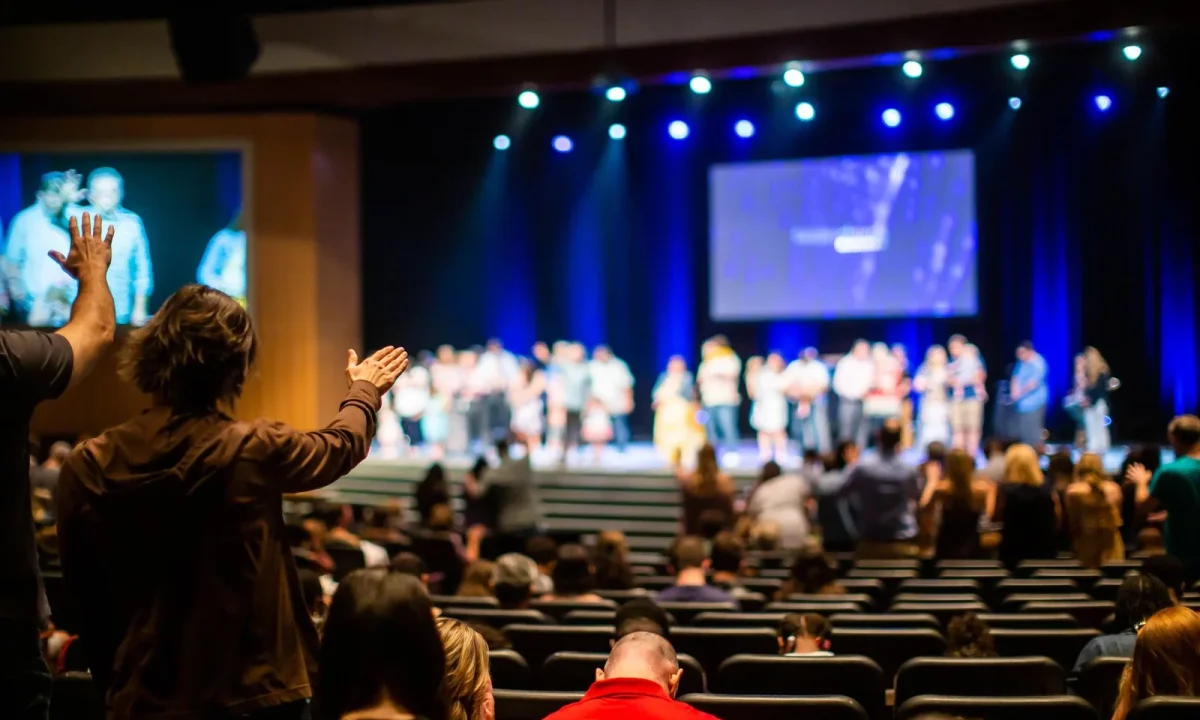
Conferences use prompters for keynote decks, agenda transitions, and strict sponsor wording that must be delivered accurately. Town halls benefit from them because speakers can maintain eye contact while citing policy details, budgets, or prepared responses to recurring questions. Worship services rely on them for liturgy, scripture, lyrics cues, and multilingual readings that must stay synchronized across a stage team. Broadcast-style hybrid events add a camera layer, which makes consistent wording and framing even more valuable. In each case the equipment supports structure, while the presenter supplies warmth and spontaneity.
Choosing the Right Prompter Setup for the Stage
Confidence monitors vs. beam-splitter glass prompters
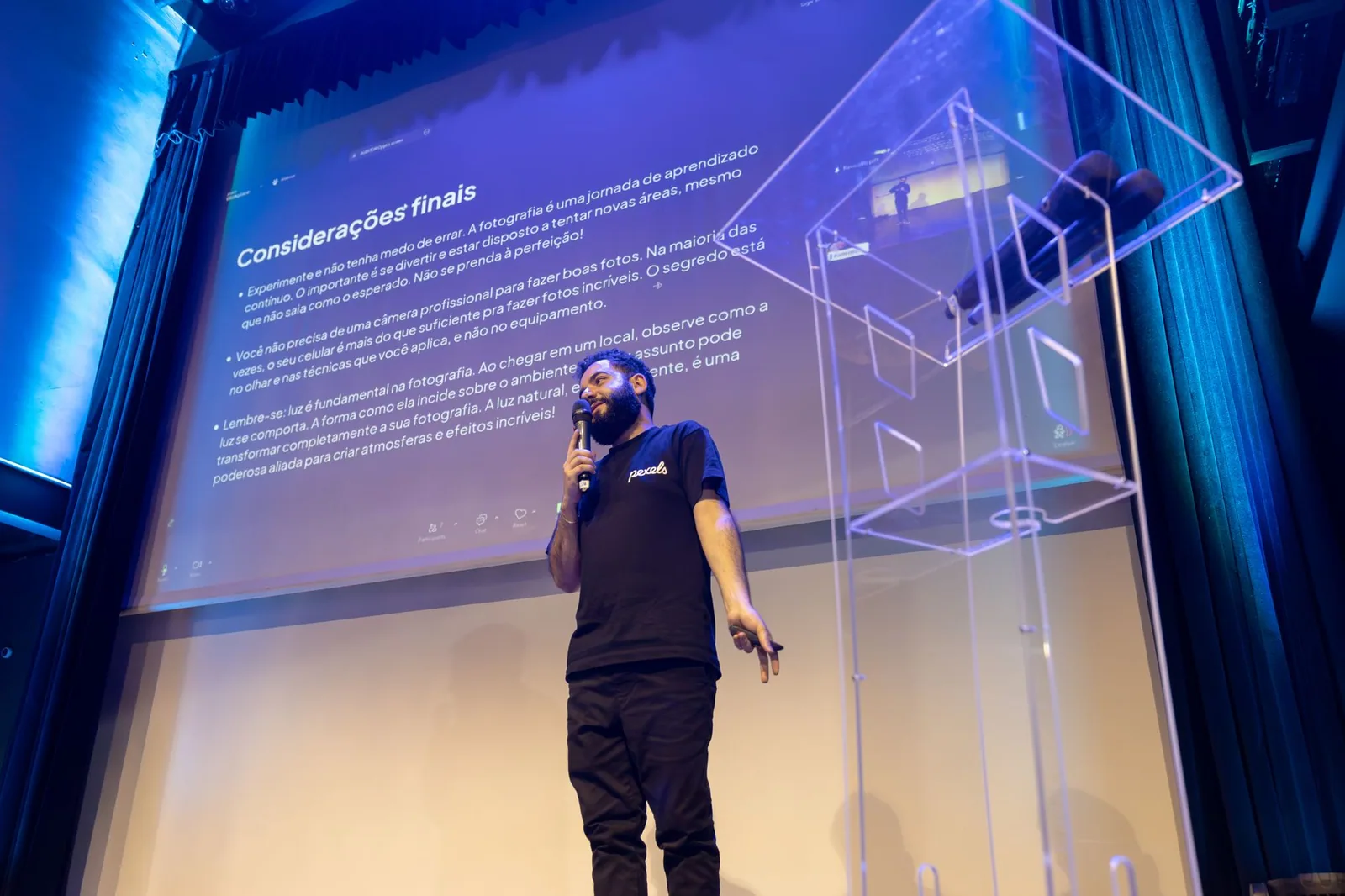
A confidence monitor sits at floor level or on a stand and shows the script at roughly eye height, which keeps your head up and your posture open. It is forgiving for speakers who glance down briefly and easy to place in venues with limited stage space. Beam-splitter glass systems, by contrast, mount a half-mirror in front of a camera lens so that on-camera talent appears to look directly at the viewer. Glass rigs are ideal for broadcast and hybrid events, but they demand precise alignment and more rehearsal. If your event is streamed as often as it is attended, the extra setup time usually pays for itself.
Autocue systems for lectern-mounted presentations
Lectern-mounted autocue systems integrate the screen directly into the podium, giving speakers a stable reference while keeping hands free for notes, slides, or a clicker. They are common in corporate keynotes and governance meetings where the speaker stays in one position for long stretches. The main advantage is consistency: the scroll distance to your eyes never changes, so formatting stays predictable. The trade-off is rigidity—you cannot wander the stage without leaving your script behind. Teams that choose this route often pair it with a wireless remote so a floor operator can adjust speed on the fly.
Tablet and phone apps for smaller venues
For workshops, small church services, and community panels, a tablet propped on a stand with a scrolling app is often enough. These setups are inexpensive, quick to configure, and easy to reposition between speakers. The limitations are practical: smaller screens mean shorter lines, less text per frame, and greater sensitivity to ambient light. If you go this route, increase the font size dramatically, raise the screen as close to eye level as possible, and keep a printed copy within reach. Many speakers pair a phone app with a Bluetooth remote or foot pedal so they control the pace themselves.
Writing a Script That Works at Speaking Pace
Chunking information into short, speakable blocks
A script written for the page will fail on the stage, because readers absorb text at a very different speed than listeners absorb speech. Break the content into blocks of two or three sentences that can be delivered as one breath group, then insert a hard break between them. Each block should carry a single idea, a single number, or a single transition so your eyes can locate the next line quickly after you look away. Short blocks also make recovery easier: if you skip a line, you lose a sentence rather than a paragraph. This is one of the quiet foundations of engaging audience with teleprompters in practice.
Adding stage directions and emphasis markers without reading them aloud
Stage directions belong in the script, but they must be visually distinct so they never become spoken words. Use uppercase tags such as [PAUSE], [SHOW SLIDE], or [APPLAUSE] in a contrasting color, and train yourself to read only the sentence text. Emphasis markers like bold or capitalization help you land key phrases without sounding flat, while parenthetical reminders such as (slow down) keep your pacing honest under pressure. Over time these cues become second nature, and the script starts to function like a score rather than a paragraph. If you want a deeper foundation, our Mastering Teleprompter Usage guide covers formatting and operating fundamentals in detail.
Formatting for readability from several feet away
Distance is the enemy of legibility, so format with your viewing position in mind rather than your desktop habits. Use large fonts, generous line spacing, and a maximum line length your eyes can scan in a single sweep. Left-align the text, avoid hyphenated words at line breaks, and consider all-caps sparingly because uppercase is harder to read in long runs. Test the layout by standing at your actual speaking position and reading a full screen without leaning forward. If any line requires effort, it will require effort under stress.
Rehearsal Routine Before the Doors Open
Scroll-speed testing with your natural delivery
The most common prompter failure is speed mismatch: the text arrives faster than the speaker can process, or crawls so slowly that attention drifts. Set the scroll to your natural conversational pace during a full run-through, not a nervous rehearsal. Speak the script out loud at least twice, noting every place where you had to rush or where the text waited on you. Adjust incrementally rather than resetting the whole file, and record the final speed so the operator can replicate it on event day. Consistency here does more for your confidence than any amount of extra memorization.
Marking pause points, Q&A transitions, and applause breaks
Live audiences need breathing room, and a continuous wall of text gives the operator no instruction to pause. Annotate the script with explicit markers where you expect applause, a question from the floor, or a hand-off to another speaker. Marking a Q&A transition is especially important, because the scroll must stop entirely while you field questions and resume only when you return to prepared material. These annotations turn the prompter into a shared roadmap between you and the operator. Teams that treat the script as a cue sheet almost always report smoother segment changes.
Running a full dry run with lighting and microphone checks
A script rehearsal is not a technical rehearsal, and the two fail in different ways. Run the full session with stage lighting on, because bright spots and glare can wash out a monitor that looked perfect in a dim office. Check microphone levels, clicker range, and slide advance timing while you are at it, since those usually interact with the prompter workflow. Invite a colleague to watch from the audience and note whether your eye line looks natural. Any problem discovered before doors open is a problem you still have time to solve.
Delivering Naturally While Reading Live
Eye-line management so viewers don’t notice the screen
The giveaway of prompter use is a fixed gaze that never moves, which reads as detached even when the content is strong. Alternate between the screen, the audience, and—when a camera is present—the lens itself, using short reading bursts followed by natural glances outward. Keep the screen as close to eye level as your rig allows, because steep downward angles exaggerate the “reading” look. Practice landing on a single line, delivering it, then lifting your eyes before the next. Over time this rhythm becomes invisible to everyone except you.
Pausing and paraphrasing when you need to think
You are allowed to stop. A deliberate pause reads as confidence, while a rushed sentence reads as panic, and the prompter will wait as long as you need it to. If a line does not match your natural voice, paraphrase it—the meaning is what matters, not the exact wording. Signal the operator with a small hand gesture or a click of the remote if you plan to deviate for several sentences. Skilled speakers treat the script as a guide rather than a contract.
Using gestures to break the rhythm of reading
Reading cadence tends to flatten delivery, so use purposeful gestures to restore the dynamic range of your voice. Counting on fingers, open-palm emphasis, and a deliberate step toward the audience all interrupt the metronomic quality that purely scripted speaking produces. Pair each gesture with a change in vocal volume or pace, and the delivery immediately feels more conversational. These small physical choices also help you re-enter the script naturally after a spontaneous moment. It is a practical layer of engaging your audience with teleprompters.
Live Streaming Tips for Hybrid and Broadcast Events
Synchronizing the prompter with the stream operator
Hybrid events fail when the stage and the stream drift out of alignment, and the prompter is often where that drift begins. Establish a shared timing plan before the event: who controls scroll speed, how breaks are signaled, and what happens when a speaker ad-libs. Use simple communication—headsets, hand signals, or a shared countdown cue—so both operators react to the same signals. Run one synchronized rehearsal so the stream team can see exactly where pauses and transitions will occur. For more on coordination, see Live Streaming Teleprompter: Everything You Need to Know.
Handling technical failures with a printed backup script
Every experienced operator keeps a printed copy within arm’s reach, and every experienced speaker knows where their outline lives. If the screen goes dark mid-sentence, glance down at paper notes, deliver the key point in your own words, and let the crew resolve the issue behind you. The audience rarely notices a moment of improvisation, but they always notice panic. Mark major headings on the printed version so you can find your place in seconds rather than scanning paragraphs. Redundancy is the cheapest insurance you will ever buy on stage.
Adjusting for camera framing and lower-third overlays
Lower thirds, captions, and picture-in-picture graphics can cover part of your prompter area or distract from your eye line, so frame-check before the doors open. Position the monitor where your natural gaze lands within the camera’s clean frame, and verify that on-screen graphics do not push your eyeline to the edge of the shot. Ask the director for the final overlay layout early, then adjust screen height accordingly. These live streaming tips keep both the in-room and at-home audiences comfortable. You may also find Understanding Live Streaming Teleprompters: Functions and Benefits helpful for setup decisions.
Engaging the Audience Beyond the Script
Building in interactive moments that aren’t written down
A script should supply structure, not swallow spontaneity, so deliberately leave room for material you will never type. Mark segments where you will ask a show of hands, invite a show of energy, or respond to something happening in the room. These moments work because they are not read—they are experienced, and audiences can tell the difference instantly. When the prompter handles the precision content, you get to spend your attention on connection.
Using the prompter for live polls, responses, and callouts
The prompter can also carry dynamic content, including poll results, audience quotes, names of panelists, and real-time responses to submissions. Displaying these on the screen keeps you accurate without forcing you to memorize unfamiliar names or numbers that arrive minutes before the session. Coordinate with the crew so new text is inserted in the same formatting as the rest of the script, preserving your reading rhythm. Done well, this makes the presentation feel current rather than canned. Practical guidance for daily use lives in Practical Tips for Using a Live Streaming Teleprompter Effectively.
Balancing prepared content with spontaneous reaction
The best live sessions move between prepared precision and genuine reaction, and the skill lies in knowing which mode you are in at any moment. When energy in the room spikes, pause the scroll, respond honestly, and then re-enter your script at the next heading rather than mid-sentence. That re-entry point is exactly why block formatting matters: you always know where to land. Expect to improvise more than you rehearse, and treat the script as the reliable path home. Additional approaches are covered in Effective Live Streaming Teleprompter Tips for Engaging Audiences.
After the Event: Review and Refine
Recording the session for delivery analysis
Watching yourself is uncomfortable, but it is the fastest route to measurable improvement. Review the recording with a checklist: eye-line consistency, pace, filler words, and the moments where you visibly searched for the next line. Note every instance where the scroll moved faster or slower than your delivery, then adjust the settings in your template. Pay attention to transitions too, since awkward segment hand-offs are usually script problems rather than equipment problems. Small corrections applied after each event compound into noticeably stronger delivery over a season.
Collecting audience feedback on clarity and engagement
Post-event surveys and casual conversations often surface issues the recording cannot, especially around pacing and comprehension. Ask a few specific questions: which sections felt rushed, where did attention dip, and what should be cut next time. Attendees are remarkably candid about when a speaker seemed to be reading rather than speaking with them. Combine that feedback with your own notes so the next script reflects both the performance and its reception. Consistent refinement keeps the format fresh for repeat audiences.
Updating your script template for the next appearance
Turn each review cycle into template maintenance rather than a one-off edit. Update your standard line length, font size, pause markers, and operator notes so the next event starts from a proven baseline. Save a versioned copy of the final script alongside the annotated rehearsal copy, which makes future comparison easy. Over time you will accumulate a set of formatting rules that work for your voice and venue. If you want a systematic framework, Best Practices for Using a Live Streaming Teleprompter Effectively and Avoiding Common Mistakes with Your Live Streaming Teleprompter are strong next reads, along with our Teleprompter for Live Events: Tips to Engage Your Audience companion piece.
Conclusion
A teleprompter for live events works best as a safety net rather than a crutch. When you pair a well-formatted script, a rehearsed setup, and a few smart live streaming tips, you can focus your energy on engaging the audience instead of worrying about what comes next. Start small, test your scroll speed, and build confidence one event at a time.
Frequently asked questions
What type of teleprompter setup works best for a live event versus a studio shoot?
For live events, camera-mounted prompters (through-the-lens glass) are best when the presenter must look directly into a lens, such as live-streamed keynotes. For stage events with an audience, use confidence monitors or presidential prompters (glass panels on floor stands at the front of the stage), which let the speaker face the crowd while reading. Relying on one screen at the back of the room usually backfires, because it forces the speaker to look away from the audience for the entire talk.
Do I need a dedicated teleprompter operator during the event?
Yes, for anything beyond a simple recorded read. A live operator tracks the speaker’s pace, handles unscripted pauses, and loads last-minute script changes. Auto-scroll modes cannot adjust when a speaker speeds up, stops for applause, or answers an audience question, and a text that drifts ahead of the presenter is one of the most common causes of visible stumbles on stage.
How should I handle script changes that arrive after the show has started?
Keep the running script in a shared document and have the operator paste edits into the prompter software in chunks, using clearly marked anchors (e.g., ‘APPLAUSE’, ‘ROLL VIDEO’) so the speaker can find their place instantly. Always keep the previous version open in a second window in case the edit introduces an error. For critical changes, signal the speaker verbally or through the talkback system rather than assuming they will spot the update on screen.
What font size and scroll speed should I use for a live presentation?
Set the text large enough to read comfortably at the speaker’s distance — on stage prompters that usually means 48–72 pt or larger, with high contrast and generous line spacing. Choose a scroll speed slightly slower than the speaker’s natural pace; a human operator should fine-tune continuously. Test the exact setup at rehearsal distance, since text that looks fine in the booth is often unreadable from the stage.
What backup plan should I have if the teleprompter fails mid-event?
Print a large-type hard copy of the script on numbered cards and give the speaker a monitor fallback showing the same text. If everything goes down, agree on a signal (for example, an operator raising a colored card) so the speaker can move to abbreviated bullet notes rather than freezing on stage. Rehearse the failure scenario at least once so the recovery feels routine.
How do I keep the presenter from sounding like they are reading?
Break the script into short, conversational phrases with natural pauses and stage directions, and give the speaker script-reading rehearsal time on the actual prompter hardware. Encourage them to read one thought at a time and deliver it to the audience or camera rather than following the scrolling words continuously. Pausing for eye contact is safe as long as the operator knows to freeze the text.
Recording with a script? Try Lumi.
Keep your script near the camera and out of your final video. Try free for 3 days.
Learn more


