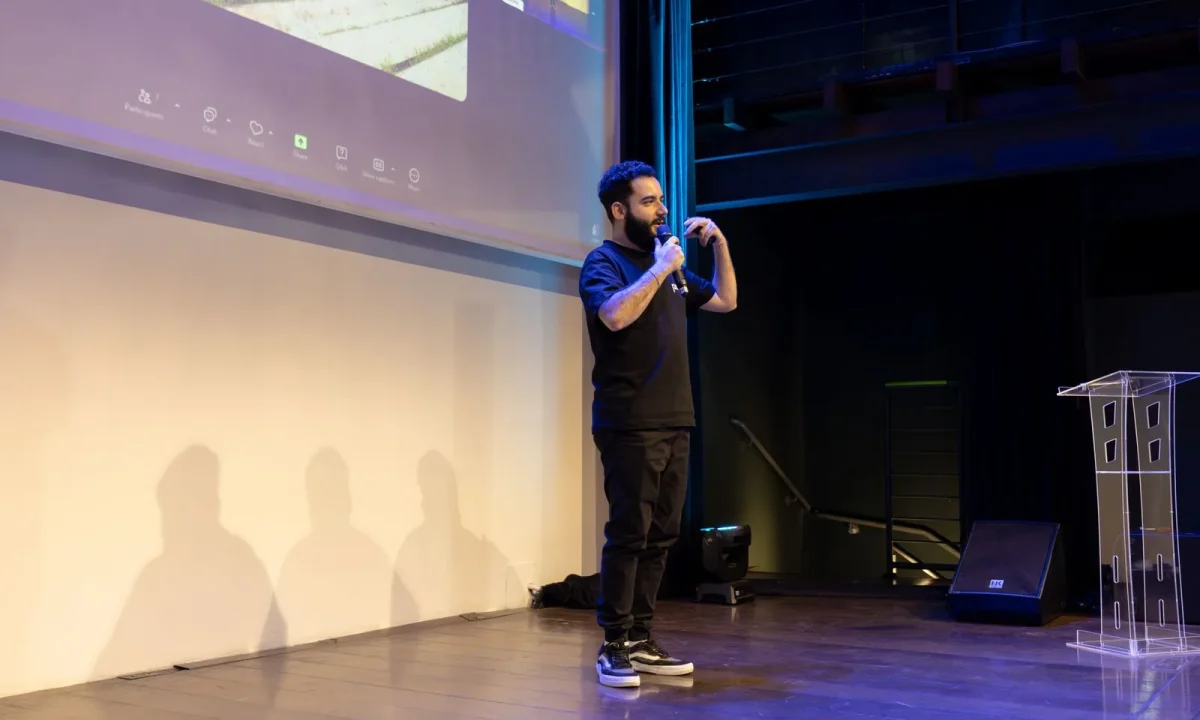
Running a teleprompter for live events can feel intimidating when the audience is watching in real time and there is no second take. This step-by-step guide walks content creators, video producers, public speakers, and educators through preparing the script, configuring the gear, rehearsing, and delivering with confidence. Along the way, you will find practical live streaming tips and approaches to engaging the audience with teleprompters so every word lands naturally on stage or on camera.
Why Use a Teleprompter for Live Events
A teleprompter is best understood as a support tool rather than a crutch. It carries the burden of exact wording so that you can spend your attention on tone, timing, and the people in front of you. When stakes are high — a product announcement, a keynote, a lecture with a fixed window — knowing the next sentence is already waiting on screen removes a layer of anxiety that would otherwise leak into your voice.
The benefits are most visible when conditions are imperfect: a noisy room, a tight schedule, or complex material that cannot be paraphrased. In those moments, prompting turns a fragile delivery into a dependable one, and it does so without the audience ever noticing the equipment at all.
Keeping complex messages accurate under pressure
Pricing figures, safety instructions, legal disclaimers, and step-by-step procedures rarely survive improvisation. A prompter lets you deliver those passages verbatim while keeping your posture open and your gaze steady, so precision never costs you warmth or credibility.
Staying on time without sounding scripted
Scroll speed is effectively a pace clock. When the text advances at your natural rhythm, you are less likely to rush the middle of a talk or pad the ending, and the result reads as conversational structure rather than recitation — a principle covered in our Mastering Teleprompter Usage resource.
Maintaining eye contact with the audience
A prompter placed close to the camera lens or at podium height keeps your eyeline consistent with direct address. Viewers interpret that steady gaze as confidence, which is exactly the impression you want when the message matters most.
Step 1: Build a Script That Reads Well Aloud
Scripts for live delivery differ fundamentally from written articles: they are heard once, in real time, by people who cannot re-read a sentence. Write for the ear by keeping clauses short and ideas in the order you would naturally say them. Read every paragraph aloud as you draft, because anything you stumble over on paper will stutter on stage.
Formatting matters as much as wording. Break the page into compact blocks, end lines where you would breathe, and avoid dense paragraphs that force your eyes to hunt for the current word. Treat the script as a performance document, not a manuscript — more on this approach in Live Streaming Teleprompter: Everything You Need to Know.
Writing short, spoken-sentence structures
Spoken sentences average shorter than written ones for a reason: the listener processes audio linearly and cannot skim. Favor one idea per sentence and front-load the key point so the sentence still works if attention drifts halfway through.
Adding natural pauses and emphasis markers
Insert explicit cues such as a slash for a short beat, a double slash for a longer pause, or a capitalized word for vocal stress. These markers stop you from racing through transitions and give the audience time to absorb the point you just made.
Formatting for scrolling speed and line breaks in a teleprompter for live events
Long lines that wrap mid-sentence break your reading rhythm, while extremely short lines make the text jump too quickly. Aim for balanced line lengths, generous spacing between paragraphs, and a clear heading structure that lets you find your place after any interruption.
Step 2: Choose and Set Up Your Gear
Equipment categories generally fall into three families: through-lens prompters mounted in front of the camera, freestanding units for podium or desk use, and confidence monitors that sit below the lens for a more relaxed eyeline. Each serves a different setting, so match the hardware to the room rather than to the spec sheet, and review the fundamentals in Understanding Live Streaming Teleprompters: Functions and Benefits.
Setup is where most live problems are born. Check scrolling software, remote control pairing, battery levels, and cable routing before the room fills, then write down a fallback: a printed copy of the script, a second operator, or a marked-up page on the podium. A physical backup costs nothing and rescues entire events.
Confidence monitors, through-lens, and freestanding options
Through-lens units give the tightest eyeline to the camera, confidence monitors let you look slightly downward for a softer feel, and freestanding units follow you as you move. Consider stage width, lighting glare, and whether you will be seated or walking before deciding.
Placing the prompter relative to the camera or podium
Position the glass as close to the lens as the setup allows, and keep it far enough from your eyes that the text does not force you to cross your gaze. On a podium, place it at natural reading height so your chin stays level and your shoulders stay open.
Checking software, remote control, and backup plans
Confirm scroll direction, font size, contrast, and remote responsiveness in the actual room lighting. Then rehearse the failure path: if the remote dies, can a partner advance the text; if the screen freezes, is the printed script within arm’s reach. For a full walkthrough, see Step by Step: Your Live Streaming Teleprompter Setup.
Step 3: Rehearse With the Teleprompter Before Going Live
Rehearsal is where engaging audience with teleprompters truly begins — you cannot connect with a room while you are fighting the text. Schedule at least one full run-through on the actual equipment, in the actual position you will occupy, with the actual lighting. Anything less leaves the critical variables untested.
Run the rehearsal at event conditions: stand up, hold the clicker, and speak at performance volume. Half-rehearsed readings hide the exact problems — sudden scroll jumps, small fonts, awkward phrasing — that only appear when you commit fully to the delivery.
Running timed full run-throughs
Time each run and compare it against your allotted slot, noting where you gain or lose minutes. Two or three timed passes usually reveal that your intros run long and your closings run short, which is far easier to fix in the script than on the day.
Adjusting scroll speed to your natural cadence
Set the speed slightly slower than your fastest comfortable pace, so brief hesitations never leave you staring at a blank screen. Small increments matter: a speed that feels perfect at the lectern often feels rushed once adrenaline raises your speaking pace.
Practicing recovery when you lose your place
Deliberately skip a line mid-rehearsal and practice finding the last heading, pausing, and resuming with confidence. Audiences read such pauses as deliberate emphasis, so the skill to rehearse is calm re-entry rather than frantic catching-up.
Step 4: Engage Your Audience While Reading

Text on screen competes directly with human connection, so your job is to make the prompter disappear. The most reliable technique is a glance pattern: read a phrase, look up, deliver it, then return. That loop keeps your gaze dynamic and gives the audience the impression of conversation rather than narration. For deeper guidance, explore Engaging Your Audience with Teleprompters: A Complete Guide.
Variation sustains attention. A steady monotone reading signals that the words matter more than the listeners, while changes in volume, speed, and gesture tell the room which moments are pivotal. Building these variations into your script — with the pause and emphasis markers from Step 1 — makes them automatic under pressure.
Using glance patterns instead of fixed staring
Alternate roughly one sentence on screen with one beat of eye contact, adjusting the ratio to your material’s density. The screen should be glanced at, not gazed into, and your peripheral vision does most of the work once you know the rhythm.
Pausing at paragraph breaks to scan the room
Paragraph breaks are natural checkpoints: finish a block, look up, and scan for nods, puzzled faces, or questions. What you see there should inform your next delivery — slowing down, adding an example, or moving on with confidence.
Varying tone, pace, and gesture to signal emphasis
Reserve a slower pace and a lower register for the central claim, then lift your energy for calls to action. Pair those shifts with open hand gestures and a step forward, and the reading disappears behind what feels like genuine, spontaneous communication.
Step 5: Handle Live Delivery and Troubleshooting
Live events have no retakes, so calm fallbacks matter more than perfect equipment. Decide in advance what you will do when the scroll freezes, when you skip a line, or when the remote stops responding, and practice those responses during rehearsal. Preparation converts panic into a two-second pause. Broader guidance lives in Effective Live Streaming Teleprompter Tips for Engaging Audiences.
Communication with your operator is a quiet superpower. Agree on hand signals for “slow down,” “freeze,” or “skip ahead” so adjustments happen without a word being spoken on stage. That invisible coordination keeps the audience’s attention exactly where it belongs.
What to do if the scroll freezes mid-event
Hold your position, take a breath, and continue from memory or paraphrase while signaling your operator. A momentary gap in the text is invisible to listeners as long as your composure holds — most recoveries fail because the speaker reacts visibly, not because the screen stopped.
Improvising gracefully when you skip a line
Do not backtrack to correct yourself unless the missing line carried critical information. Instead, bridge forward with a transition such as “the key takeaway here is…” and rejoin the script at the next heading, keeping momentum intact.
Cueing a technician or partner operator
Use pre-agreed gestures and keywords so your operator knows whether to pause, rewind, or jump. If you are running the prompter yourself, tools like a foot pedal or handheld remote let you control the flow while speaking — a technique explained further in Practical Tips for Using a Live Streaming Teleprompter Effectively.
Step 6: Review and Improve After the Event
Every event leaves a trail of useful evidence, and the recording is the richest source. Watch your performance once for delivery, then a second time specifically for reading tells: downcast eyes, flat inflection, or hands locked to the script. Naming those patterns is the first step to removing them.
Cross-check what you felt with what actually happened. Note where timing drifted, where audience energy visibly dipped, and which sections generated questions or reactions. That comparison between intent and outcome is where real improvement lives, and it is the backbone of Best Practices for Using a Live Streaming Teleprompter Effectively.
Watching the recording for reading tells
Track how long your eyes stay on screen in a typical sentence and watch for the moment your voice loses variation. If a segment sounds rehearsed rather than spoken, the fix is usually script phrasing or scroll speed — rarely your talent as a presenter.
Noting timing overruns and engagement dips
Mark timestamps where you ran long and where attention visibly wandered, then compare both against your paragraph structure. Clusters of dips almost always point to dense blocks that need shorter sentences, stronger transitions, or an interactive break.
Refining the script template for next time
Save what worked as a reusable template: your best paragraph length, pause placements, section headings, and recovery cues. Over a few events this becomes a personal house style that makes each new script faster to write and smoother to deliver — a process detailed in Avoiding Common Mistakes with Your Live Streaming Teleprompter.
Conclusion
A teleprompter for live events works best when it fades into the background: a well-spoken script, a reliable setup, thorough rehearsal, and deliberate audience contact combine so viewers remember your message, not the technology. The six steps above move you from wording to hardware, from practice to delivery, and finally to review, so each event becomes a foundation rather than a gamble.
Start with one event, apply these steps, watch the recording, and refine. Over time, prompting becomes second nature and your live delivery grows steadier, clearer, and more engaging — at which point the screen stops being something you depend on and becomes simply one more quiet tool in your kit.
Frequently asked questions
What type of teleprompter is best for a live stage event, a confidence monitor or a presidential glass prompter?
For keynotes and stage presentations, presidential (glass) prompters placed left and right of the audience let the speaker look straight ahead and maintain eye contact. Confidence monitors placed on the floor work well for panels, awards, and casual stages where perfect eye contact matters less. Match the setup to the venue sightlines and how polished the delivery needs to be.
How do you handle last-minute script changes during a live event?
Load the script into prompting software that allows live editing, and assign a dedicated operator who can reformat and re-flow text on the fly. Always keep a printed copy at the podium as a fallback, and agree on clear hand signals between speaker and operator for jump to section or pause. Never rely on an auto-scroll-only setup when the program is likely to change.
What scroll speed should a teleprompter run at during a live event?
There is no fixed words-per-minute number; the operator must match the speaker’s natural pace and adjust in real time. Rehearse at least one full run-through so the operator learns the speaker’s rhythm, pauses, and audience applause moments. Set the font size and line spacing so the speaker can read comfortably from the actual stage distance before the event begins.
What backup plan should you have if the teleprompter fails mid-event?
Keep a printed script at the podium, a saved copy of the final text on an offline laptop or tablet, and a second display or confidence monitor as redundancy. Brief the speaker to continue with bullet-note cards or the printout if prompting drops, and run a technical check covering power, cables, and signal before doors open.
Do live event presenters still need to rehearse if the script is on a teleprompter?
Yes. Rehearsal is what lets the speaker sound natural rather than read, and it exposes pacing, pronunciation, and transition problems before an audience sees them. A teleprompter removes memorization pressure but does not replace delivery practice or timing to the program schedule.
Recording with a script? Try Lumi.
Keep your script near the camera and out of your final video. Try free for 3 days.
Learn more


