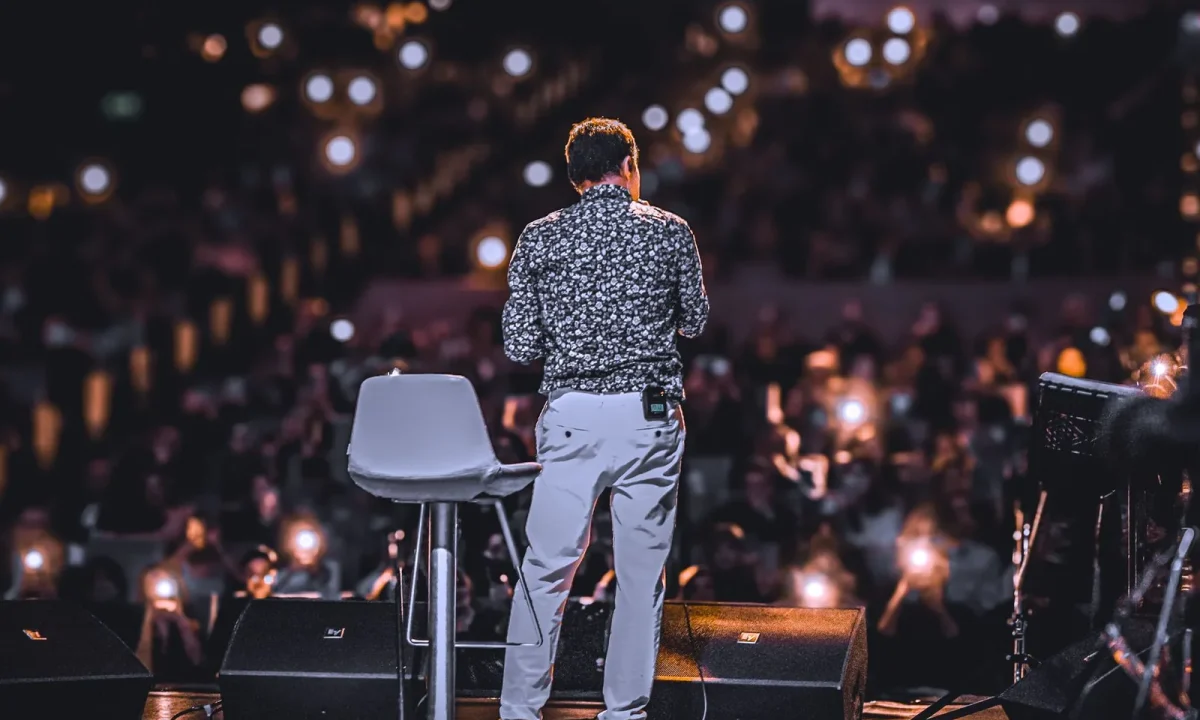
A teleprompter for presentations lets speakers deliver polished talks while keeping eye contact with the audience and staying on message. At its simplest, it combines a scrollable script with a display placed at eye level, so you can glance, speak, and reconnect with your listeners without ever hunting for your place on a page of notes. This guide explains what a presentation teleprompter actually is, the technology behind it, and how creators, educators, and public speakers can put one to work with confidence.
What Is a Teleprompter for Presentations?
Defining the device in a live-speaking context
In a live-speaking context, a presentation teleprompter is any system that delivers your script text at a comfortable reading height and distance while you remain facing forward. It is built for monologue delivery: keynotes, classroom lectures, graduation addresses, product launches, and recorded talks where a single voice carries the message from beginning to end. Unlike a sheet of notes or a slide deck full of bullet points, the prompter streams your words in order, which removes the cognitive load of remembering what comes next. That single change is why speakers often report feeling calmer and more consistent once they adopt one. The device itself can be as modest as a tablet on a stand or as elaborate as a pair of freestanding glass panels flanking a stage.
How it differs from a teleprompter for interviews
The distinction matters because the two tools optimize for different relationships. A teleprompter for interviews is usually camera-mounted, placing text directly behind the lens so the guest appears to look straight at the interviewer or viewer during a two-way exchange. A presentation unit, by contrast, is designed for wide-stage eye lines and continuous monologues, where the speaker sweeps across a room of people rather than locking onto a single lens. If you are trying to decide which path fits your work, our How to Use a Teleprompter for Interviews: A Complete Guide walks through the dialogue scenario in depth. Choosing the wrong category is one of the fastest ways to end up with awkward geometry and unusable footage.
Why on-screen text changes presenter behavior
Seeing your script in the eye line quietly rewrites your delivery habits. When text is available at a glance, speakers stop hedging with filler phrases while they search for the next idea, and they tend to hold steadier pacing because the words arrive in a predictable rhythm. The risk, of course, is that the delivery can drift toward a read rather than a talk, which is why structure and rehearsal matter just as much as the hardware. A useful companion resource is Mastering the Teleprompter for Presentations: A Comprehensive Guide, which covers script shaping and delivery nuance. Used well, on-screen text becomes a safety net that frees attention for gestures, facial expression, and audience reaction.
How Presentation Teleprompter Technology Actually Works
Mirror glass, beam-splitter optics, and reflected text
According to public documentation from teleprompter manufacturers, the core of most glass-based systems is a beam-splitter pane: a partially reflective sheet that allows light from behind it to pass through while simultaneously reflecting the monitor image back toward the speaker. Because the reflected text would otherwise read backwards, the prompting software mirrors the display, so the corrected words appear legible only to the person standing at the prompter. The audience, looking at the same glass from the front, sees through it to the speaker’s face rather than the script. This optical trick is what allows a presenter to look directly at the crowd while appearing to read. For a broader treatment of how these optical principles play out across gear categories, see Understanding Teleprompters for Video Formats: A Complete Guide.
Scrolling software and pacing controls
The second half of the system is software, and it does most of the heavy lifting for comfort. Prompting applications let you set font size, line width, margins, and contrast, then scroll the script at a speed you control with a keyboard, mouse wheel, remote, foot pedal, or a dedicated operator. Many programs also display countdown markers, highlight the current line, and let you jump to bookmarks when a talk has optional sections. Speed control is the feature that separates a smooth presentation from a stressful one, because it lets you decelerate for emphasis or accelerate through familiar material. Practically speaking, the goal is to make the text move at the pace your mouth wants to go, not the other way around.
Confidence monitors vs. camera-mounted units
Not every setup uses beam-splitter glass at all. A confidence monitor is simply a screen placed on the floor or lectern that shows the scrolling script in plain sight, and it is common in broadcast studios and houses of worship where the speaker stands at a fixed mark. Camera-mounted units, on the other hand, sit directly in front of the lens and are the standard choice when recorded eye contact with the viewer is the priority. The trade-off is geometry: floor monitors create a downward eye line that reads as looking down on stage, while glass units keep your gaze level. Choosing between them is less about features and more about where your audience actually is, which is the central question our Which Teleprompter for Video Formats Fits Your Project? piece explores.
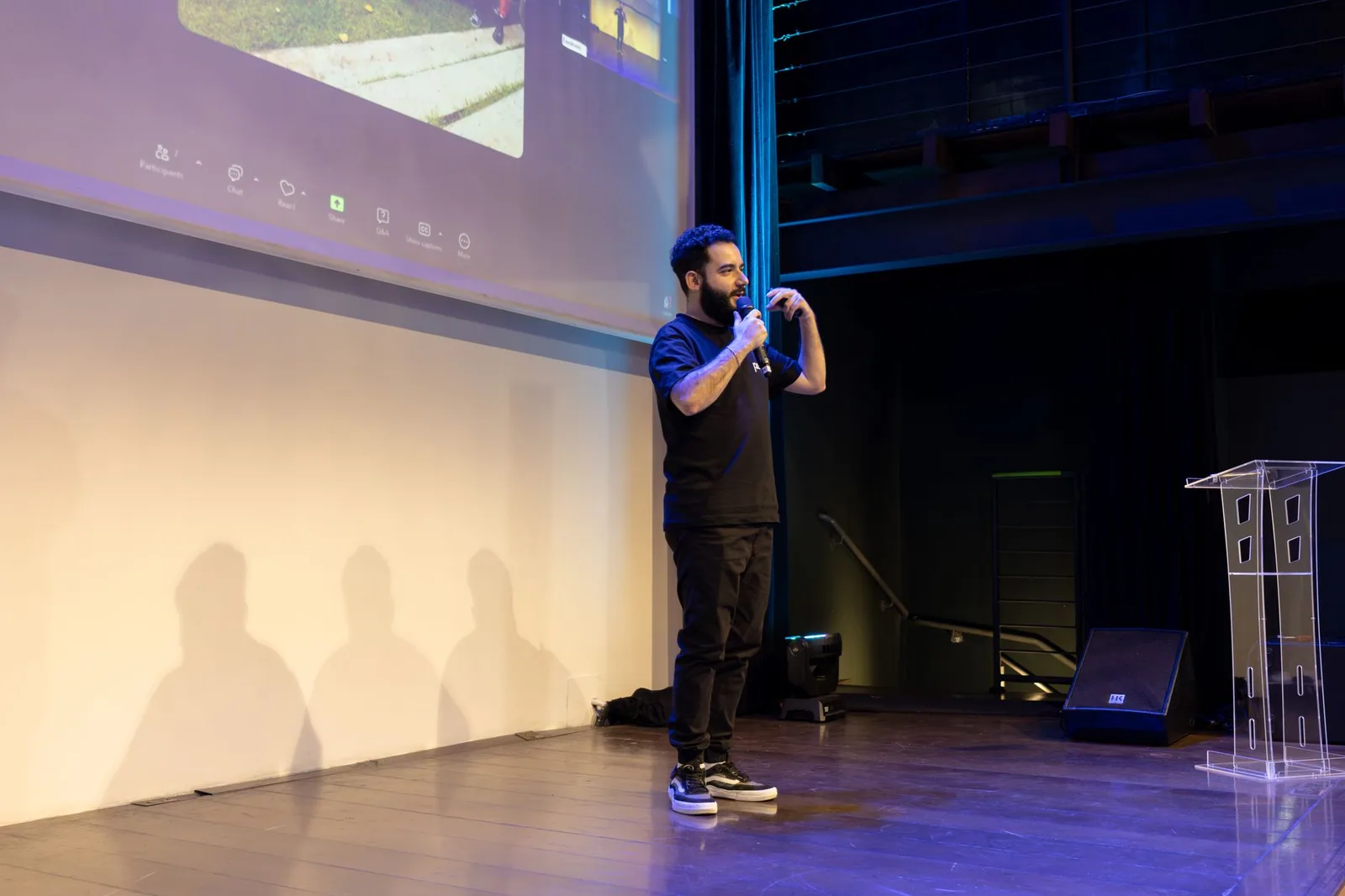
Common Setups for Different Presentation Formats
Autocue and presidential prompters for stages
For large venues, freestanding autocue or presidential prompters are the classic solution: two glass panels angled inward at the front of the stage, each paired with its own monitor and operator. They give the speaker identical text from either side, which means you can turn your head naturally without losing the line. Because the panels sit low and wide, the audience rarely registers them as anything more than stage furniture. This setup is standard for political addresses, award shows, and conference keynotes where delivery accuracy cannot be compromised. It does require floor space, a skilled operator, and advance coordination with the venue’s AV team.
Tablet or laptop stands for small rooms
In classrooms, training rooms, and small conference spaces, a tablet or laptop perched on an angled stand is usually enough. The script scrolls on the device screen, and because there is no glass, you read directly from a screen positioned just below or beside the camera or your audience’s eye line. It is inexpensive, portable, and quick to set up, which makes it ideal for speakers who present in a different room every week. The main limitation is that your gaze angle betrays the reading slightly, so it works best when the audience is small and forgiving. Many educators start here before investing in anything more elaborate.
Teleprompter for vlogging and recorded lessons
When the presentation is recorded rather than delivered live, camera-mounted glass becomes the default because direct eye contact with the lens translates into trust on screen. A teleprompter for vlogging is common precisely for this reason: scripted videos stay accurate, and the viewer never sees you glancing away. The same logic applies to recorded lectures, course modules, and product walkthroughs, where a single mistake means a reshoot. If scripted video is your medium, The Ultimate Guide to Using a Teleprompter for Vlogging covers the workflow in detail. The setup is compact enough to live permanently on a desk rig.
Studio rigs with camera-mounted glass
Studio productions combine the best of both worlds: a camera-mounted prompter in front of the lens plus a larger confidence monitor for presenters who move around a set. Operators control pacing from a separate station, and the script can be updated live if news or product details change mid-shoot. For teams producing varied content, How to Use a Teleprompter for Various Video Formats Effectively maps equipment choices to format, and Teleprompter for Video Formats: A Step-by-Step Workflow lays out an end-to-end production sequence.
Step-by-Step: Setting Up Your First Presentation Prompter
Writing a script that speaks naturally
Start with the words, because hardware cannot rescue an unreadable script. Write the way you talk: short sentences, contractions, and the occasional direct question keep the cadence human and prevent the delivery from sounding recited. Break paragraphs at natural breath points, and avoid long subordinate clauses that force you to hold a thought across three lines of text. Read the draft aloud at least once as you write, because your ear catches awkward phrasing that your eye skips over. The script is the foundation everything else rests on, so it deserves more revision time than the equipment setup.
Loading and scrolling your script
Once the text is final, paste it into your prompting application and set the display parameters before you touch the stage. Choose a font large enough to read comfortably from your actual standing distance, set margins wide enough that your eyes do not have to track far, and add line breaks where you want natural pauses. Run the scroll once at a tentative speed to confirm the pacing feels close, then note any sections that feel rushed or sluggish. Save the file under a versioned name so a last-minute edit cannot overwrite your rehearsal copy. A reliable sequence for this stage is outlined in Teleprompter for Video Formats: A Step-by-Step Workflow.
Practicing timing and eye lines
Rehearse standing up, in position, with the prompter running, because seated practice hides the eye-line problems that only appear under stage lighting. Mark your spot, glance at the glass, deliver a full sentence, then look up and hold your gaze until you need the next line. Pay attention to where your eyes land between cues; if they drop below the audience’s heads, raise the monitor or adjust the glass angle. Run the talk several times so the scrolling rhythm becomes familiar rather than surprising. The aim is for the mechanics to become automatic before delivery day arrives.
Checking lighting and glare before you begin
Final check: lighting. Beam-splitter glass reflects everything, so a spotlight aimed at the stage can bounce a hot spot straight into your reading position, and daylight from a window behind you can wash out the script entirely. Walk the room with the system running, view the glass from your speaking mark, and adjust fixtures or add a hood to the prompter until the text is crisp from every position you plan to use. Confirm as well that the monitor brightness suits the room, since a screen tuned for a dark studio will disappear in a bright hall. Two minutes of this check prevents the most common technical failure on presentation day.
Practical Tips to Look Natural While Reading
Chunking sentences into glanceable lines
Natural delivery starts with how the text is broken up. Chunking means arranging your script so that each line holds one complete thought you can absorb in a single glance, rather than leaving mid-phrase endings that force you to jump back. When a line ends on a word that carries no meaning by itself, your eyes dart, and that tiny dart is visible as a flicker. Format the script so breaks fall after punctuation and after meaningful clauses. Do this consistently and your head movement shrinks to an occasional, almost imperceptible check.
Marking pauses, emphasis, and audience cues
Annotate the script the way an actor marks a score. Slashes for pauses, capitalization or an asterisk for stressed words, and short margin notes such as “look left” or “show slide” turn the scrolling text into a performance guide rather than a wall of prose. These marks do more than improve rhythm; they give you permission to stop, and stopping is what makes a talk feel conversational. Speakers who never pause tend to sound breathless even when the content is excellent. Marked pauses also give your audience a moment to absorb, laugh, or applaud.
Using hand gestures away from the scroll control
Keep your hands free of the remote whenever possible, because reaching for a scroll button mid-sentence creates a visible break in your body language. If you must control the speed yourself, choose a foot pedal or a discreet handheld remote that you can operate without looking down. Gestures should support your words, not compete with the mechanism driving your words. The moment your audience notices you fiddling, they start wondering what you are doing instead of listening to what you are saying. When in doubt, let an operator handle the scroll and keep both hands available for expression.
Working with a scroll operator or foot pedal
A dedicated scroll operator is the single biggest upgrade you can make to a live presentation. A good operator listens to your delivery rather than watching the clock, slowing down when you lean into a story and speeding up when you move through familiar ground. Brief them before the talk: share the script, flag the sections where you like to pause, and agree on a hand signal for “hold” and “skip.” If an operator is not available, a foot pedal gives you most of that control without breaking your stance. Either way, someone or something must be responsible for pace so that you can be responsible for the room.
Who Benefits Most From a Teleprompter for Presentations
Content creators and video producers
Creators who script their videos gain accuracy and consistency from prompters, especially when a single take has to carry product details, disclaimers, and calls to action correctly. The camera-mounted format preserves the illusion of speaking directly to the viewer, which is central to audience connection. Teams producing high volume find that prompters shorten shoot times considerably, since fewer flubbed lines mean fewer retakes. If your output spans several styles, Practical Ways to Use a Teleprompter for Video Formats offers a menu of practical applications. The learning curve is short, and the payoff shows up immediately in your edit.
Educators and corporate trainers
Educators benefit because the prompter removes the anxiety of forgetting a definition, a safety instruction, or a critical step in a procedure. Trainers delivering compliance material appreciate that wording stays precise across repeated sessions, so every cohort hears the same accurate message. The device also frees attention to monitor the room, watch for confused faces, and adapt in the moment. A tablet stand is often sufficient for these settings, keeping costs and setup time low. Over time, many instructors find their general confidence behind any lectern improves.
Public speakers and keynote presenters
Keynote speakers use prompters to protect high-stakes moments: a launch announcement, a statistical claim, a quote that must be exact. On a wide stage, presidential-style glass keeps eye lines level across a large audience, which projects authority rather than distraction. The prompter also makes it possible to incorporate sponsor mentions or partner acknowledgements verbatim without consulting notes on stage. For presenters refining technique, Maximizing Your Teleprompter for Video Formats: Best Practices collects habits that compound over time. The tool does not replace stagecraft, but it removes one variable from an already complex performance.
Creators comparing a teleprompter for interviews with stage use
Finally, some speakers work across both worlds, cutting between sit-down interviews and on-stage keynotes in the same week. Understanding where each tool belongs prevents wasted setup time and mismatched expectations: glass behind the lens for dialogue, wide stage panels for monologue. If you want a structured starting point, How to Use a Teleprompter for Various Video Formats Effectively shows how format drives hardware choice, and our pillar on Mastering Teleprompter Usage ties the underlying skills together across every scenario.
Common Mistakes and How to Avoid Them
Reading too fast or without pauses
The most frequent failure is speed. When text scrolls continuously and you chase it, you lose the pauses that let meaning land, and the audience stops processing before you reach the payoff. The fix is partly technical and partly habit: slow the default pace, mark explicit pause points in the script, and practice delivering each section as if the room needs a beat to catch up. Related guidance on pacing and control appears in Avoiding Common Mistakes with Teleprompters for Video Formats. Remember that a talk delivered slightly slower but clearly understood beats a rushed one every time.
Standing rigidly behind the glass
The second mistake is physical. Speakers who stare fixedly at the glass tend to lock their shoulders, plant their feet, and deliver the entire talk from a single frozen position. Because the text is right there, there is no natural reason to move, so you have to create one deliberately. Plan three or four marks on the stage and shift between them at section boundaries, using your transitions as the cue. Add hand gestures on emphasis words and allow your posture to open toward whichever side of the room you are addressing.
Ignoring audience eye contact between cues
Even with perfect optics, a speaker who never breaks from the screen reads as disengaged. Train the pattern: glance, absorb a phrase, look up, speak it, and hold eye contact until you genuinely need the next line. The longer you can hold the gaze, the more present you appear, and audiences respond to presence more than to flawless wording. Try the “look, speak, hold” loop in rehearsal until it feels natural rather than mechanical. If you find yourself reading continuously, shorten your chunks so each glance yields less text and more looking time.
Skipping a full rehearsal with the final script
The last trap is rehearsing with a draft and presenting with a revision. New wording changes line lengths, which changes how often you need to glance, which changes your pacing. Run the complete talk at least once with the exact final script, in position, with the scroll running and the room lighting as close as possible to the real conditions. Note where you stumbled, where you ran out of breath, and where the operator lost you, then adjust the script or the marks rather than hoping the day will be forgiving. Thorough rehearsal is the cheapest insurance available.
Conclusion
A teleprompter for presentations is a practical tool that combines simple optics with scrollable script software so speakers can deliver accurate, well-paced talks without losing their place. As we have seen, the beam-splitter glass keeps your gaze level, the software lets you control rhythm, and the setup you choose should follow your format, from presidential stage panels to tablet stands to camera-mounted rigs for recorded lessons. Writing in a spoken style, chunking your lines, marking pauses, and rehearsing under real conditions are what transform a mechanical read into a natural talk.
The practical next step is straightforward: pick the setup that matches where your audience will be, draft the script the way you would say it aloud, and run at least one full rehearsal with the final version before the lights come up. Start small if you are new, treat every mistake as script or pacing feedback rather than hardware failure, and build your confidence one presentation at a time. With a little preparation, the prompter stops being something you watch and becomes something you barely notice at all.
Frequently asked questions
Will the audience be able to tell I’m reading from a teleprompter?
Usually not, if the script is written in a conversational tone and the scroll speed matches your natural speaking pace. Eye contact is the giveaway: on camera, place the prompter lens as close to the lens as possible, and on stage use confidence monitors positioned near the front rows rather than glancing down at a laptop. Rehearsing until the phrasing feels like your own voice removes the flat, reading-like delivery that audiences notice.
Can a teleprompter work together with PowerPoint or Keynote slides?
Yes, and this is one of the most common professional setups. Dedicated presentation software can show your slides to the audience while your speaker notes scroll on a confidence monitor only you can see, and hardware prompters for hybrid events often let you run slides on one display and the script on another. Just keep slide notes shorter than your full script — prompts work best as cues, not paragraphs.
What scroll speed should I use and how do I set it?
Aim for a pace slightly slower than your comfortable speaking rate so you never feel chased, and set it by timing yourself reading the full script aloud. Most apps let you adjust speed on the fly with a remote or foot pedal, and some newer tools use voice tracking to follow you automatically. Practical rule: if you find yourself rushing or skipping words, the scroll is too fast; if you’re waiting for the next line, speed it up slightly.
Is a teleprompter useful for live in-person presentations, or only for video?
It works in both settings, but the hardware differs. For in-person stage talks, speakers typically use confidence monitors or tablet-based prompters placed at the front edge of the stage, angled so the script is readable without dropping the eyes. For webinars and video calls, a prompter mounted around your webcam keeps your gaze at the camera, which matters far more when your face fills the screen.
How long should the script be, and can I improvise while using one?
Treat the text as a safety net, not a prison: many presenters use bullet-style prompts plus the first and last lines of each section, which frees them to improvise around the structure. A fully written script is better for high-stakes or legally reviewed messages, but it demands more rehearsal to sound natural. Either way, mark pauses and emphasis cues so the delivery has rhythm instead of a continuous drone.
Do free teleprompter apps work well enough, or do I need paid software or hardware?
Free apps handle the basics — scrolling text, adjustable speed, mirror mode — and are fine for casual video messages or practice. Paid tools add useful extras like voice-followed scrolling, multi-device sync, remote control, and recording with the script overlaid near the camera, which becomes worth it for frequent speakers or teams. Hardware prompters mainly buy you optics: a beamsplitter glass that sits in front of the lens so eye contact looks genuinely direct.
Recording with a script? Try Lumi.
Keep your script near the camera and out of your final video. Try free for 3 days.
Learn more


